Unsolid Trim — cut one solid with another, keep the labels

What does this tool do?

Unsolid Trim cuts the TARGET solid with the CUTTER solid — like SketchUp Pro's Trim command, but safe for the plugin's boards: any nested sub-groups inside the board (labels, CNC marks, edge bands…) are left out of the boolean and kept untouched, instead of breaking it.

Use it when you need to:

  • Cut a board against a form solid (e.g. trim a cabinet side to a wall volume, or a top to a beam).
  • Pocket a recess of any shape using another solid.
  • Trim a board that already carries ABF labels without losing them.

The tool uses SketchUp's solid trim, so it needs SketchUp Pro, and both objects (after their sub-groups are set aside) must be solids.

Basic steps

  1. Click the Unsolid Trim icon. The cursor shows a blue circle with the step number.
  2. Step 1 — pick the CUTTER: click the solid used as the knife (the status bar reads Select CUTTER (1)).
  3. Step 2 — pick the TARGET: click the board to be cut (the status bar reads Select TARGET (2)). The cut runs immediately.
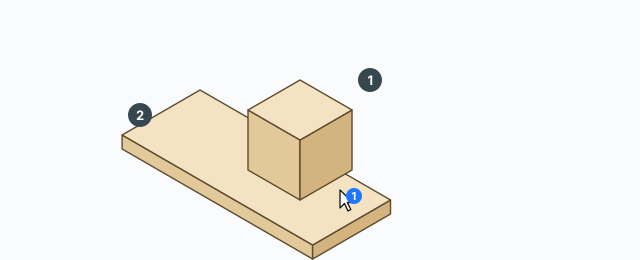
1: click the cutter solid first. 2: click the target board

Quick way: pre-select exactly two groups/components before starting the tool — the first selected is the CUTTER, the second is the TARGET — and the cut runs at once with no picking. With just one object pre-selected, it becomes the CUTTER and the tool asks for the TARGET.

After the cut: the CUTTER stays in the model and is left in the selection, and the tool exits back to Select. Everything is one Undo step (Ctrl+Z).
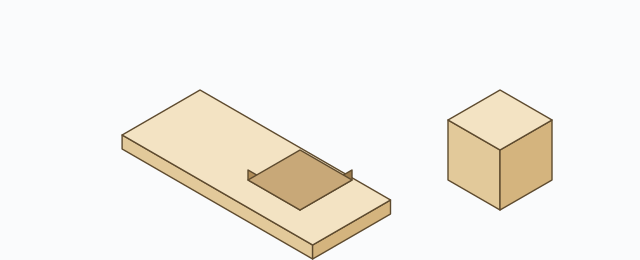
The target board has a recess in the cutter's shape; the cutter is still intact beside it

Nested groups stay safe

The boolean runs on mesh-only throwaway copies of the two solids — every sub-group/component inside the TARGET (the _ABF_Label label, drill marks, lap marks…) never touches the boolean and is kept intact inside the board after the cut. The cutter is not consumed either: only its temporary copy is erased.
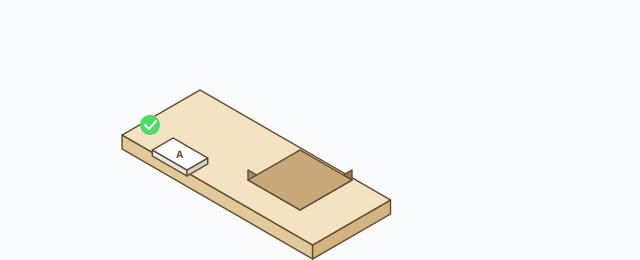
The small label nested in the board survives the cut

Keyboard

  • Click – pick the CUTTER (step 1), then the TARGET (step 2).
  • Esc – cancel the tool.

Common problems

  • Nothing happens, no error: the tool is silent like the native Trim — the usual cause is that one of the two objects is not a solid (open seams, broken faces, or nothing left but sub-groups once the mesh is set aside). Check Entity Info for “Solid Group/Component”.
  • Cut the wrong way round: the order is CUTTER first, TARGET second. With two pre-selected objects, the first one selected becomes the cutter.
  • Does not run on SketchUp Make/Free: the solid trim API only exists in Pro.
  • A label outside the board was lost: only sub-groups inside the TARGET are protected; anything outside it is out of scope.

0 bình luận

Đăng nhập để bình luận

Danh sách video

Explode → Groups — convert components to plain groups
ABF Extra Label — arrow and board number
Rotate Label — turn the board label 90°
Flip Label — move the label to the other face
Find Nesting Parts — locate a board on the sheets
Nesting Editor — move parts, re-pack, and set cut order
ABF Extra Nesting — pack labelled boards onto sheets
Generate G-code — toolpaths on the nesting
Export Nesting DXF — one file per sheet
CNC relief circles — round a concave corner
Tenon helper — tenons and mortises where boards touch
Cam Lock — drill marks for cams, screws and dowels
Unsolid Trim — cut one solid with another, keep the labels
Unsolid Outer Shell — merge solids into one shell
Intersection Mark — stamp the section where boards meet
Solid Inspector — find holes and stray edges
Bend — round a square corner into an arc
Unfold — flatten a curved board for CNC kerf cutting
Cross halving join — mark half-lap regions where boards cross
CNC marking — a cut line or a pocket on a face
Edge banding — mark a board's side faces
Isolate selection — hide everything else
Deep Push — push a face from outside the object
Move Vertices — drag board corners by exact mm
Make Face — skin every closed edge loop
Draw board — a finished board from two corners
Contour — turn a drawn line into a solid strip
Pen Curve — draw and edit Bézier curves
Align — snap a group or component onto a face, edge, or point
Mirror — reflect across a face plane or along an edge
Rotate — turn the selection 90° about X, Y, or Z
Trim Side Faces — inset a board's outer side faces
Precise scale — slide one side of a group or component
Cross Cut — split a group or component across one edge
Layer manager — show, color, highlight, and focus tags
Component Inventory — tally parts, hardware, edge band, and prices
Label Print — print labels for boards in the nesting
Warehouse — local models, V-Ray materials, and assets
Settings — account, nesting, and toolbar
Color — select every object that uses the picked material
Remove Color — clear materials on the selection
Dumb Scale — set the world width, depth, or height of the selection
Hover dimensions — width, depth, and height on the object under the cursor
Instance Rename — rename the selected groups and components