Cam Lock — drill marks for cams, screws and dowels
What does this tool do?
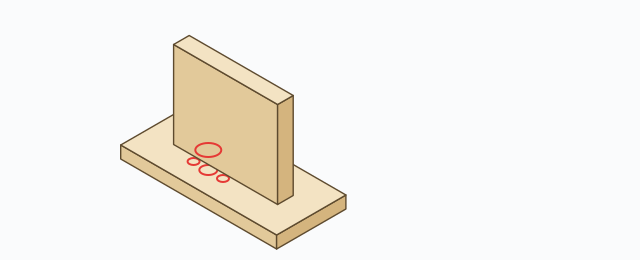
Cam Lock stamps drill marks for knock-down fittings (cam locks, screws, dowels) onto boards that are touching: a ⌀15 circle for the cam body on the lock board, a ⌀10 circle for the pin on the mating board, a 3×50 screw groove… All of these are lines drawn on the board faces on drill layers (like ABF-D15, ABF-D10, ABF-DSIDE-3) — the tool does not cut any solid; the CNC reads the layers to drill or mill.
Use it when you need to:
- Place cam-lock (minifix) positions between a vertical and a horizontal board, optionally with two ⌀8 dowels on the sides.
- Mark screws (a ⌀3 hole plus a 3×50 groove) or screws with a cap (an extra ⌀10 circle).
- Edit the connections you already marked: delete, flip the face, flip the leg.
Basic steps
- Select the cam-lock board first (the board that takes the cam body), or start the tool and double-click that board. The tool finds the mating (pin) boards that touch it, isolates them, and turns on X-ray and color-by-tag.
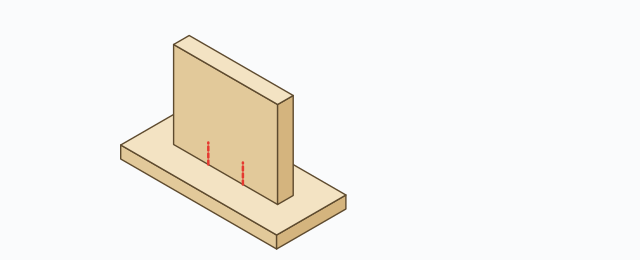
- On the lock board's front/back faces, red dashed anchor ticks appear at each slot position inside the real contact regions.
- Hover an anchor: it turns green, with a green preview of the circles/groove to be created.
- Click to mark that slot.
Hold a key while clicking:
- Shift — also mark the mirrored slot on the opposite contact face.
- Ctrl — mark every slot on that face at once.
- Tab — flip the marked face of the lock board (front ↔ back). The ⌀15 mark always lands on the camera-facing face unless you flip it.
Quick input: type /3 to set the slot count to 3; type a plain number (e.g. 80) to set the edge offset. These two values only apply to the current session — use the settings dialog to keep them permanently.
Three modes: Cam / Screw / Screw+cap
The pill row on the HUD picks the mode (each mode's name and visibility can be changed in settings):
- Cam — a ⌀15 circle (default) on the lock board, inset 34 mm from the contact edge; a ⌀10 circle on the pin board's face. Turn on Wood dowel to add two ⌀8 holes 32 mm apart.
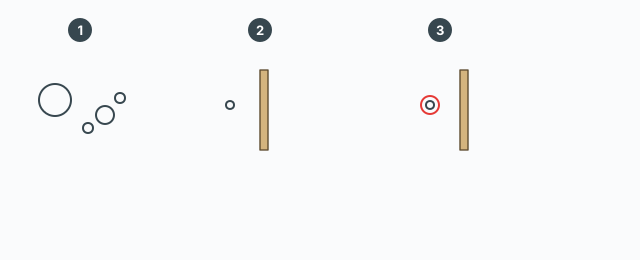
- Screw — a ⌀3 hole on the pin board and a 3×50 groove on the lock board's face (layer
ABF-DSIDE-3). - Screw+cap — like Screw, plus a ⌀10 circle for the cap covering the screw head.
HUD chips: Slot (slot count along the edge), Offset (edge offset, mm), Flip leg (screw modes: leg to Front/Back), Wood dowel (cam mode: toggle the two ⌀8 dowels — the choice is remembered).
Edit mode (wrench)
Click the wrench icon to enter edit mode: the tool finds every connection already marked in the model. Click to select one connection, Shift+click for several, or drag a rubber band to select a group. The icon row at the top offers: delete all, flip all faces (of the selected connections), flip all legs (screws only), and an eraser — click individual connections to delete them. In addition:
- Delete / Backspace — delete the selected connections.
- Tab — flip the marked face of the selected connections.
- Ctrl — flip the legs (screws).
Settings (gear button)
The Cam Lock settings dialog has three tabs — Cam lock, Screw, Screw+cap — each with: the HUD display name, whether it shows on the HUD, default slot count and slot offset, lock/pin diameters, edge inset, layer names, the dowel section (enable, ⌀, spacing, layer), screw face front/back, screw ⌀, cap ⌀, screw length and offset. Save to apply, Reset to restore the defaults.
Keyboard
- Click – mark the hovered slot.
- Shift / Ctrl + click – add the opposite face / all slots on the face.
- Tab – flip the marked face (also in edit mode).
- Type
/N– slot count; type a number – edge offset (mm). - Delete – delete the selected connections (edit mode).
- Esc – exit the tool.
Common problems
- No anchor ticks: the wrong board is picked as the lock board, or it has no real contact region with any board. Double-click the lock board again.
- The ⌀10 circle is missing on the pin board: the mate was not recognised as a pin board at that slot — check that the two boards actually touch inside the slot region.
- Marks on the wrong face: press Tab to flip the lock board's face before marking, or use Edit mode to flip existing marks.
- Screw leg the wrong way: use the Flip leg chip (Front/Back) or Ctrl in edit mode.
- Want different default diameters or layers: every diameter, offset and layer name lives in the settings dialog (gear button); the HUD chips cannot change them.