Deep Push — push a face from outside the object
What does this tool do?
Deep Push pushes or pulls a face along its normal even when the face is inside a group or component, however deeply nested. You never open Edit Group/Component: point at the face, lock it, then drag or type a distance in mm.
Use it to:
- Make a board thicker, longer or wider (or smaller) without opening its group.
- Push a face level with something else (flush with a top, in line with the cabinet next to it).
- Cut a pocket, groove or step into a board, or build a block onto it.
- Repeat the same push on several different faces.
The basics
- Click the Deep Push icon on the toolbar.
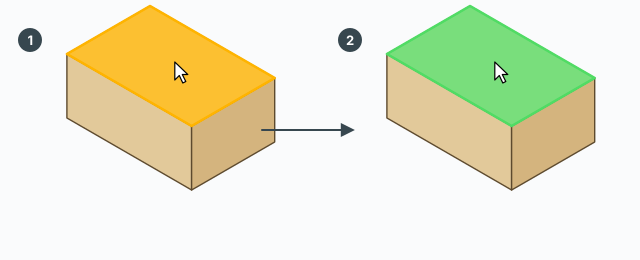
- Move the cursor over the face to push. The face under the cursor turns orange, even deep inside a group.
- Click to lock it. The face turns green and the tool switches to dragging.
- Move the mouse the way you want to push. The cyan face is the new position (preview); the red dimension shows the distance in mm.
- Finish in one of two ways:
- Click again to accept the preview, or
- Type a distance in mm and press Enter (just type — no need to click the VCB box in the corner).
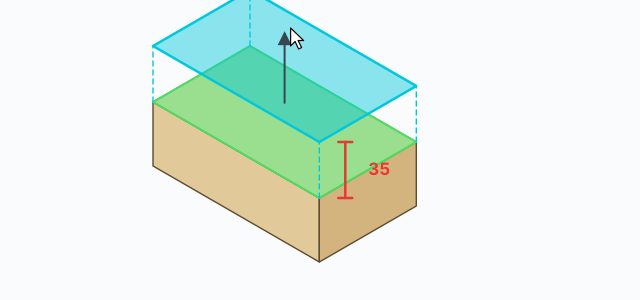
Once committed, the tool returns to the Select tool. Every push is one Undo step (Ctrl+Z to undo it).
Exact distances and Tab to change what is measured
The number on the red dimension is the distance to the current measure face. When you lock a face, the tool also finds the parallel faces pointing the other way in the same group (the back of a board, for instance). Press Tab to cycle through them:
- A – the face you push: the number is the push distance from where the face started. Typing
12pushes it 12 mm. - B – an opposite face (dashed yellow): the number is the thickness left between the two faces. Typing
18makes the board exactly 18 mm thick, whatever it was before.
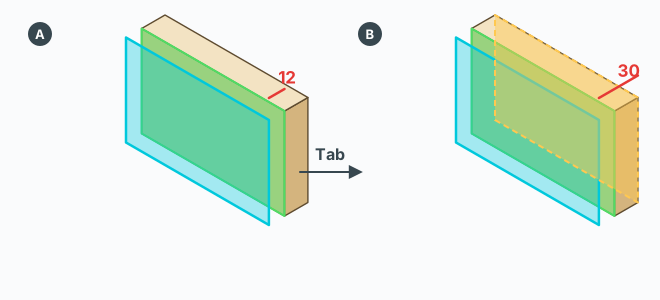
The direction (out or in) follows the way the mouse is pulling when you type. To push inwards, move the mouse inwards a little, then type the number.
Snapping: push level with something else
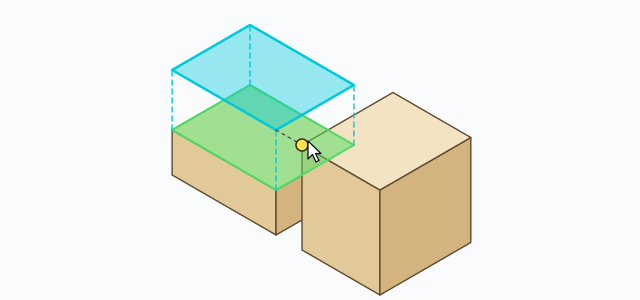
While dragging, the tool snaps (yellow dot) to:
- the midpoints of the edges of the face you push and of the measure face;
- vertices, edges and faces of anything else in the model (SketchUp's own inference).
Move to the corner of the neighbouring cabinet and click: the face is pushed exactly to that corner's level, along its normal.
Draw a rectangle on the face, then push it (Shift / Ctrl)
Instead of pushing the whole face, you can draw a rectangle on the face under the cursor and push only that. Hold a key while you click the first corner:
Shift – inside the face (pockets, grooves, raised panels)
- Hold Shift and click corner A on the face.
- Drag and release, or click a second time, at corner B. You can also type
width;height(for example600;400) and press Enter. - The rectangle splits the face and comes already locked. Drag or type mm as usual: push in for a pocket, pull out for a raised panel.
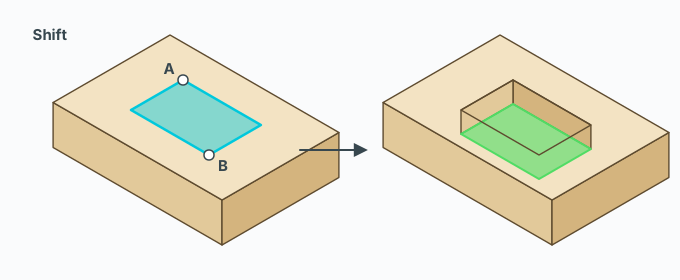
Ctrl – outside, as a separate part
Hold Ctrl when you click corner A: the rectangle lies on the plane of the face under the cursor, but in a new group at the top level of the model, not attached to the object. Pull it up to get a part of its own — a spacer, a plinth block.
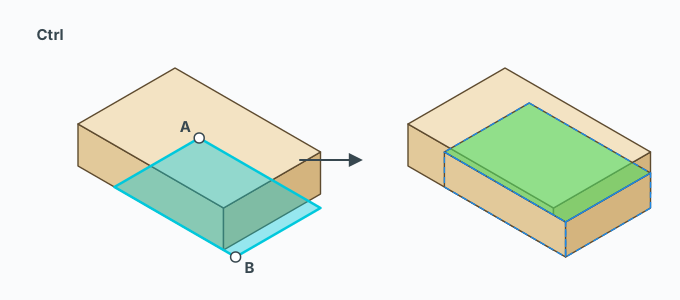
Good to know when drawing a rectangle:
- Its sides follow the longest edge of the face, so it lines up with the board even when the group is rotated.
- Drawing it and pushing it are one Undo step. Pressing Esc while drawing or pushing takes the rectangle away too.
- Clicking without pushing (distance 0) keeps the rectangle on the face.
Repeat the last push
After at least one successful push, double-click another face to push it by exactly the same distance (mm). The tool stays open so you can keep double-clicking faces.
Automatic X-ray
The X-ray chip at the top left of the view turns X-ray on or off while the tool runs, so you can see faces hidden behind others. Your choice is remembered; when the tool closes, the view goes back to how it was.
Shared components and nested groups
- If the face belongs to a component with several copies, the tool makes the one you edit unique first, so the other copies do not change with it.
- Faces in groups nested several levels deep push just the same; distances are always real millimetres in the model, even in a scaled group.
- After the push, coplanar faces right next to the pushed face are merged, so the board does not break into slivers.
- The tool also cleans up what the push left behind: edges that bound no face and faces that share no edge with another face. If the board was a closed solid before the push, edges bounding a single face (leftover flaps) are erased too; a board that was already open keeps those edges. Nested groups/components (labels, edge banding, drilling) are never touched.
Keys
- Click – lock a face / commit the push.
- Tab – change the measure face (push distance ↔ thickness to the opposite face).
- Type a number + Enter – the distance in mm;
width;heightwhile drawing a rectangle. - Shift + click – draw a rectangle inside the face.
- Ctrl + click – draw a rectangle as a separate group outside.
- Double-click – repeat the last push.
- Esc – drop the locked face (or the rectangle being drawn); press again to leave the tool.
Common problems
- The face does not highlight: something is in front of it. Turn on X-ray at the top left.
- It pushed the wrong way: you typed while the mouse was on the other side. Move the mouse to the right side and type again.
- The number is not what you expected: you are measuring to the opposite face (thickness). Press Tab to go back to the push distance.
- Double-click does nothing: there has been no successful push yet in this session.
- Component copies changed too: that only happens when you edit inside Edit Component yourself; Deep Push always makes the instance unique before pushing.