ABF Extra Label — arrow and board number
What does this tool do?
ABF Extra Label stamps a machining-direction arrow and an index plus the board's name onto the front face of every board you selected. The label is edges on that face, on the tag ABF_Label. ABF Extra Nesting only packs boards that carry this label.
Use it just before nesting: select the board groups in the model (not the nesting group itself) and run the tool once for the batch.
Questions, in order
- Select one or more groups or components. Click ABF Extra Label. With nothing selected, a message asks you to select first. The nesting root is ignored.
- The Reindex? box:
- Yes — delete the ABF_Label tag and everything on it in the whole model, clear old numbers, and number again from 0.
- No — clear labels only on the boards you selected, keep numbers on the others, and continue from the highest number still in the model.
- Cancel — stop. The model is unchanged.
- One confirmation, ABF Extra Label, with checkboxes:
- Clear colour of failed objects — boards that cannot be labelled lose their colour at the end. On the first time; every checkbox remembers the last choice.
- Run Solid Inspector — on the first time. After explode, if any resulting group is still not solid, the Solid Inspector window opens. Find selects those objects, closes the window, and stops labelling so you can fix them. Labelling runs only when every group is solid: the window stays closed, or you use Fix all until the list is empty and then close the window.
- Delete hidden objects — on the first time. Hidden groups and components only, not the hidden faces or edges of a curved solid.
- Delete dynamic attributes — on the first time.
- Clear name ID prefix — on the first time.
Yes or No, the old labels on the selected boards are stripped before new ones are drawn, so two arrows do not stack. Yes also removes labels outside the selection.
What the label looks like
On the front face (the large face chosen for the label) there is an arrow and a line of text: the index, a dot, and the name, for example 12. Door. The arrow is about 80% of the face and never longer than 400 mm; the text shrinks to stay inside the arrow. A scaled board still gets an arrow at the real size in the model.
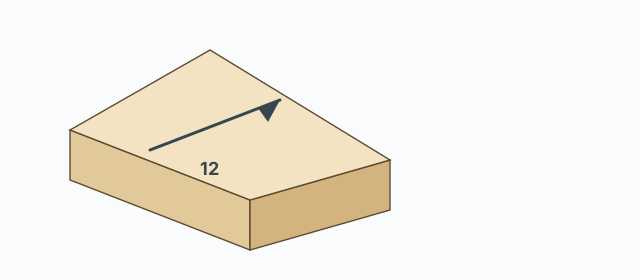
If a face is already marked as the labelled face, that face wins. Otherwise the tool uses the pair of large parallel faces, then looks at ABF marks already on each face.
What gets refused
The whole run stops, and nothing is labelled, if a material sits on an inner primitive face (that breaks colour-by-tag and CNC). The paint is stripped and those objects are left selected. The message names them. Check them and run the tool again.
A board that fails gets no label. It is listed with a reason, and selected after you close the message:
- fewer than two flat faces — not a solid;
- the two largest faces are not a parallel pair of equal area;
- those two faces have different outlines (a taper);
- no side face joins the top and bottom;
- a side face is not a rectangle (often a curved edge or a hole whose walls merged);
- no front/back frame could be built, or the label could not be drawn.
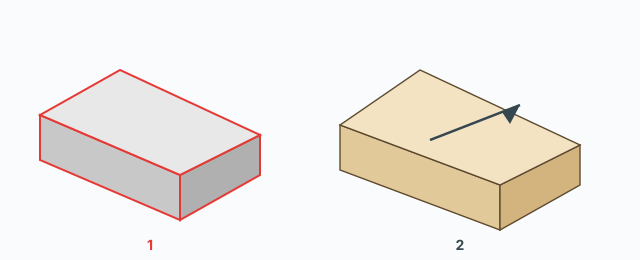
If you chose to clear the colour of failed objects, those boards lose their material as well.
Numbering
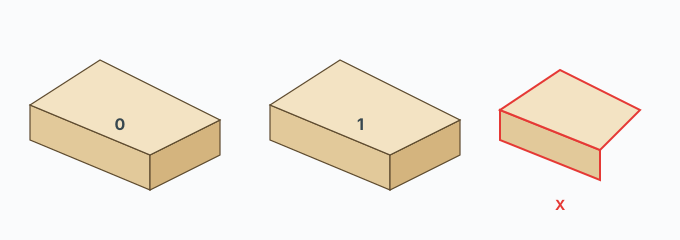
- Yes — the first board in this run is 0, then 1, 2, … Old labels in the whole model are gone.
- No — new numbers start after the highest one that remains. Boards outside the selection keep their labels.
A component with several copies is made unique before the label is written, so the other copies are not edited.
Clearing old labels, Explode → Groups, and applying the new labels are separate Undo steps. To get back to before the run, Undo through each of them.
Common problems
- It asks you to select first: the selection was empty, or you only had the nesting group selected.
- Stopped because of an inner-face material: the paint is already gone and those objects are selected. Check the geometry and run the tool again.
- Nothing was labelled: read the reason on each line. A curved edge merged into one non-rectangular side is a common one — split it back into rectangular side faces.
- The numbers jump: you chose No while old numbers still sit on boards you did not select. Choose Yes when you want a clean sequence from 0.