Draw board — a finished board from two corners
What does this tool do?
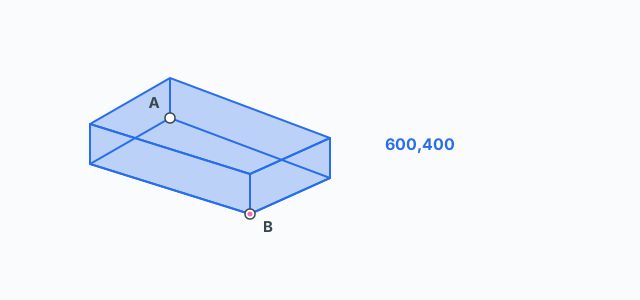
Draw board builds a finished board the way you draw a rectangle in SketchUp. The two corners you pick are the diagonal of the board's face. The tool extrudes that face into its own group, 17.5 mm thick by default, in one Undo step.
Use it to drop in a new part quickly: a side, a bottom, a top, a shelf, an upright — on a horizontal or vertical plane, or (after pressing Ctrl) flush with a face that is already there, including a tilted one.
The basics
- Click the Draw board icon on the toolbar.
- The Thickness chip sits at the top left. Click it to type a thickness in mm. The value is remembered next time.
- Click the first corner. The cursor snaps to edge ends, midpoints, along an edge, guides and their crossings, the world axes and the origin. The small pink dot is the point that will be taken; an edge being followed lights cyan.
- Drag to the opposite corner and release, or click a second time there. The board that will be built shows as a see-through block filled in the colour of the locked plane (blue / red / green, like the Rotate tool), with edges in the same colour.
- Finish by releasing after a real drag, clicking the second corner, pressing Enter, or typing sizes into the VCB.
A click that does not travel only sets the first corner. The second corner is the next click, or a drag that actually moves. After you finish, the tool stays open for the next board. Esc while dragging drops the rectangle; Esc before any corner leaves the tool.
Which plane the board lies on
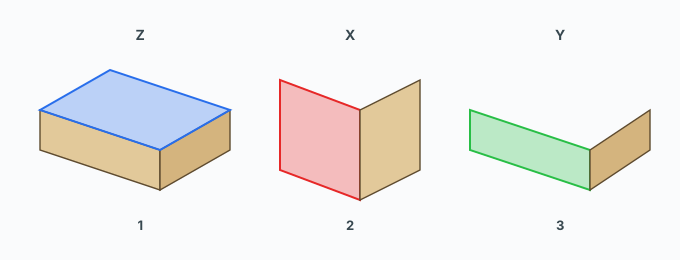
The plane is always locked to a world plane, like the axis of the Move vertices tool. As you drag to the second corner, the plane follows the mouse direction:
- Drag sideways on screen — the board lies flat (XY, blue).
- Drag up and along the red or the green axis — the board stands on the plane holding that axis and the blue one.
- Looking straight down, you always draw on the ground; looking straight from the front, you always draw on the vertical plane facing you.
- If the second corner snaps onto geometry and the diagonal lies in a world plane (same height, same X or same Y), that plane is locked outright.
The second corner is projected onto the locked plane. A point that did not snap onto geometry (only SketchUp's inference in empty space) lands where the mouse ray meets that plane.
Arrows pin, Ctrl unlocks
- Up arrow — pin the horizontal plane (blue normal).
- Right arrow — pin the red vertical plane.
- Left arrow — pin the green vertical plane.
- Down arrow or Shift — drop the pin; the plane follows the mouse again.
- Ctrl — unlock completely: the two corners decide the plane like SketchUp's Rectangle (both on one face, a tilted one included → on that face; different heights sharing no world plane → the vertical plane through that diagonal). The preview turns grey. Press Ctrl again to lock.
A pin or an unlock lasts for the board you are drawing; the next board starts locked to the mouse again. Thickness stays as you set it.
Thickness and Tab
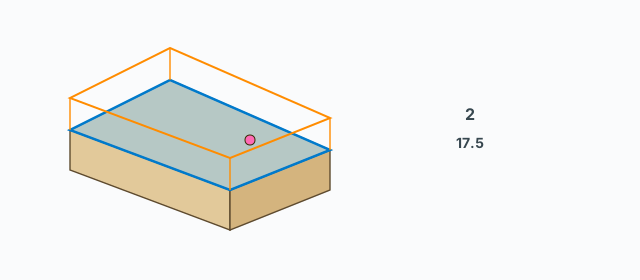
Thickness grows to one side of the rectangle. Press Tab to flip to the other side — the preview block switches immediately. The Thickness chip opens Board thickness; type millimetres (a comma or a dot both work, for example 17.5). A number that is not positive is ignored.
Exact sizes
While you drag, the VCB shows the two sides in the same spelling you can type back:
600,400— width and height in mm, keeping the quadrant the cursor is in.- A single number, for example
600— sets the first side and leaves the other as dragged.
Typing commits the board at once. After the board exists, typing the same way resizes that last board (same first corner, same thickness side). One Undo removes it, even if you retyped the size.
Double-click to cover an existing face
Before a real rectangle has been dragged, double-click a face: the tool builds a board that covers that face, on the same normal, with no corners to pick. The preview (blue outline, orange thickness) sits on the face under the cursor. If you already dragged a real rectangle, that rectangle wins and the double-click does not take over.
Keys
- Click the first corner, drag or click the opposite one — build the board.
- Enter — commit the rectangle you are dragging.
- Type
width,height— sizes in mm; after the board exists, the same text resizes it. - Tab — flip the thickness side.
- Up / Right / Left arrows — pin a world plane; Down or Shift — back to following the mouse.
- Ctrl — unlock / lock the plane.
- Thickness chip — change the mm; it is remembered.
- Esc — drop the rectangle in progress; press it before you start to leave the tool.
Common problems
- No preview: the two corners have no area yet (they coincide, or you are looking at the plane edge-on). Drag off the first corner, or pin another plane with an arrow.
- The board grew the wrong way: press Tab before you commit.
- The board is on the wrong plane: the drag direction picked another plane. Pin the one you want with an arrow before you commit.
- Cannot draw on a tilted face: by default the board is locked to a world plane. Press Ctrl to unlock, then snap both corners on that face.
- Typing does nothing: thickness has to be a positive number, and so do the sides. The thickness chip ignores 0.