Generate G-code — toolpaths on the nesting
What does this tool do?
Generate G-code opens GG Cabinet Tools — G-code Manager. The dialog reads the nesting in the open model, ties each machining layer to a toolpath and a tool, and writes G-code through the POST processor you pick.
Use it after a nesting exists and cut layers are assigned (in Nesting Editor, or automatically after ABF Extra Nesting).
How the dialog is laid out
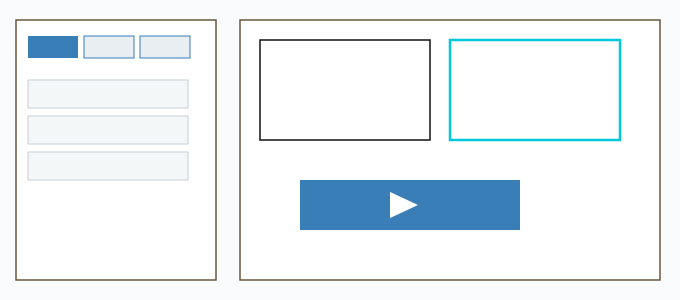
The left column has three tabs:
- Toolpaths — the list of cutter moves, in the order they will cut.
- Layers — layers taken from the nesting. Reset puts the list back to what was loaded.
- Tools — the tool library. + Add to add a tool, then Save.
On the right: All Sheets and Selected Sheet. Double-click a sheet card to open it on the Selected Sheet tab.
Load the nesting
- Click Generate G-code on the toolbar.
- Click ⬇ Load Nesting from Model. The tool reads the nesting group of the open file. Until you do, the preview says no nesting is loaded.
- Select a sheet. With no sheet selected, the 3D preview asks you to load the nesting and select a sheet first.
Toolpaths
Four add buttons, named on the buttons:
- Profile — cut along an outline.
- Pocket — clear a closed region.
- Drill — holes.
- Fluting — a ramped groove.
Click a toolpath to open its settings (the button that shows or hides toolpath settings). The fields you use most:
- Name, Start Depth (D), Cut Depth (C), Passes — Edit… opens Specify Pass Depths (Add pass, Apply).
- Tool — Select… opens Select Tool. Until you pick one, the row reads No tool selected. Remove clears the tool.
- Machine Vectors — Outside, Inside, or On.
- Direction — Climb or Conventional.
- Tags — Select… opens Assign Tags to Toolpath. If the nesting is not loaded, that box says no tags were found.
A pocket also has Clear Pocket: Offset or Raster (with a Raster Angle), and a Profile Pass of None, First or Last. Fluting has a flute type (the whole length, the start, or both ends), a ramp length and a linear or smooth ramp.
Profile has Sharpen corners (V-Bit) when the tool is a V-bit.
Drag a row to reorder. You can also move up or down, duplicate the selected row, clear the list, import JSON, import an Aspire template, export the list, and open My toolpath presets. After editing, Save the list. Closing the editor without saving drops that edit.
Material, POST, and output
- Material setup… — stock thickness, XY datum, Z-zero on the material surface or the machine bed, gaps above and below the model, Clearance (Z1), Plunge (Z2), and the home position.
- POST processor — Import POST… opens the POST dialog with a Posts on the server dropdown (shared by the admin) and the My posts list (only yours, kept on the server). The post in use is marked In use.
- ▶ Generate G-code — write the files. The box G-code generated lists them and has Show in Folder.
In the POST dialog:
- Picking a post in the Posts on the server dropdown puts a copy in My posts and uses it. The dropdown shows the server post your current post was copied from. Picking the same server post again does not add a second copy.
- Add post from .pp file… checks the file before it is kept: units must be millimetres, every
[token]must be known, each line must be clean G-code, and the moves must match the default post. A file that fails is refused with the reason. A file that passes goes into My posts and is used. - In My posts: Rename, Export .pp (the file is written exactly as stored, named after the post), and Delete. Deleting the post in use switches to your last chosen post, or your newest one. Export current post (.pp) saves the post in use.
- The first time, with no post of your own, the POST dialog opens by itself and tells you to choose a default post from the server; in the dropdown the default is marked (suggested) but is not picked for you. Until you choose, ▶ Generate G-code opens this dialog instead of writing.
- Not signed in or no connection: the post bundled with the plugin is used and a notice says so. You are asked to choose once the server can be reached.
Before it writes, the tool may ask you to continue when: some operation layers belong to no toolpath; some layers are hidden and will get no moves; a pocket includes open vectors (a pocket needs closed loops); Clearance (Z1) is below the recommended minimum; or the home Z is not above the material thickness. Read the warning, then continue only if that is what you want.
Some errors stop the export until you fix the part and generate again: a coordinate that is not a number; an XY point too far outside the sheet; top and back sheets that do not match (a shift, or a part on the back with no part on the top).
Preview
Select a sheet and a tool for the toolpath. With no tool selected, the preview says to select a tool first.
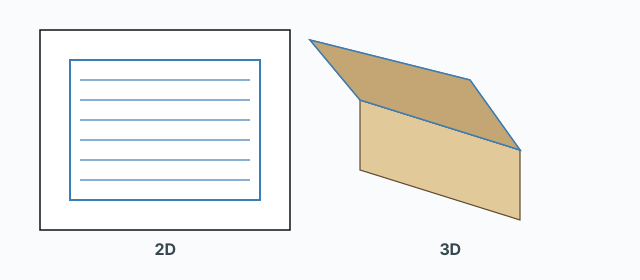
- 2D — top-down, the exact G-code that will be exported.
- 3D — the same paths in space. Carved stock simulates the blank. Drag Detail to the right for a finer carve; it uses more memory and is slower.
Common problems
- No tags to assign: Load Nesting from Model has not been clicked, or the nesting has no cut layers yet.
- The preview is empty: no sheet is selected, or the toolpath has no tool.
- A pocket warns about open vectors: that layer has a stroke that does not close. Close the outline, or continue only if you mean to.
- Blocked because top and back do not match: a back-face part is not in the same place as the top. Fix it in Nesting Editor (drag the top — the back follows) and load the nesting again.
- The file is wrong for the machine: no POST processor is chosen, or the POST is not the one for the machine you run.
- Generate opens the POST dialog: no post is chosen yet. Pick one in the Posts on the server dropdown (or Use on one of your posts), then generate again.
- A .pp file is refused: the message names the check that failed (for example
UNITSis INCH, an unknown[token], or a line that is not clean G-code). Fix the file and add it again.