Find Nesting Parts — locate a board on the sheets
What does this tool do?
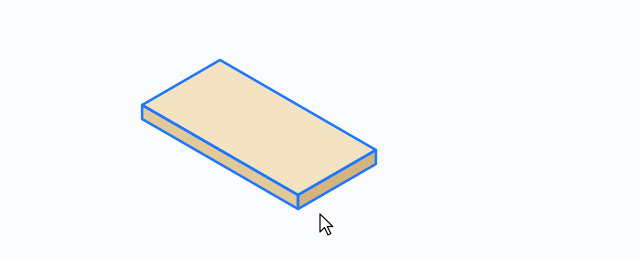
Find Nesting Parts traces a source board in the model to all of its parts on the nesting sheets — top and bottom faces alike — then selects those parts and zooms the camera to a top view fitted around the whole nesting cluster.
Use it when you need to:
- See where a cabinet board ended up on the nested stock sheets.
- Quickly check a board's parts before exporting DXF/G-code.
- Select all of a board's parts (top and bottom) at once for editing.
Basic steps
- Select one or more source boards (boards carrying the plugin's board-index — i.e. boards that went through labeling/nesting).
- Click the Find Nesting Parts icon.
- The tool finds the nesting root in the model, scans every sheet under it, and selects all parts sharing the board-index of your selection.
- The camera zooms to a top view fitted to the whole nesting cluster (keeping your current perspective/parallel mode). The status bar reports Selected N nesting part(s) (top + bottom).
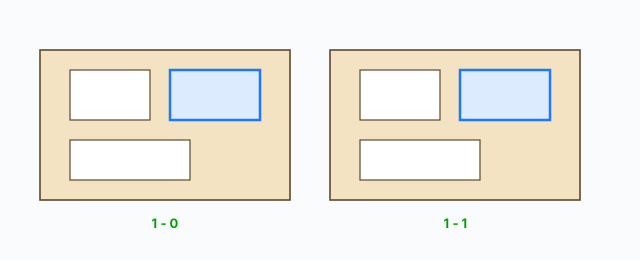
Bottom-face parts included
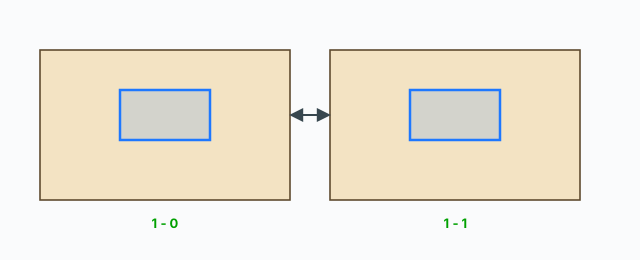
For two-sided work, the parts on both the top and bottom sheets are selected — the status count covers both. This is the fast way to check a board has both faces nested before exporting.
Common problems
- “Select a source board (with a board-index)…”: the selected object has no board-index (never labeled/nested), or nothing is selected — select the actual source board and run again.
- “No nesting (__ABF_Nesting) found…”: the model has not been nested — run Nest first.
- “No nesting parts found…”: that board was not placed on any sheet (dropped during nesting, or added after nesting) — re-nest.
- Selecting several boards at once: fine — the parts of every selected board are selected in one go.
0 bình luận
Danh sách video
Explode → Groups — convert components to plain groups
ABF Extra Label — arrow and board number
Rotate Label — turn the board label 90°
Flip Label — move the label to the other face
Find Nesting Parts — locate a board on the sheets
Nesting Editor — move parts, re-pack, and set cut order
ABF Extra Nesting — pack labelled boards onto sheets
Generate G-code — toolpaths on the nesting
Export Nesting DXF — one file per sheet
CNC relief circles — round a concave corner
Tenon helper — tenons and mortises where boards touch
Cam Lock — drill marks for cams, screws and dowels
Unsolid Trim — cut one solid with another, keep the labels
Unsolid Outer Shell — merge solids into one shell
Intersection Mark — stamp the section where boards meet
Solid Inspector — find holes and stray edges
Bend — round a square corner into an arc
Unfold — flatten a curved board for CNC kerf cutting
Cross halving join — mark half-lap regions where boards cross
CNC marking — a cut line or a pocket on a face
Edge banding — mark a board's side faces
Isolate selection — hide everything else
Deep Push — push a face from outside the object
Move Vertices — drag board corners by exact mm
Make Face — skin every closed edge loop
Draw board — a finished board from two corners
Contour — turn a drawn line into a solid strip
Pen Curve — draw and edit Bézier curves
Align — snap a group or component onto a face, edge, or point
Mirror — reflect across a face plane or along an edge
Rotate — turn the selection 90° about X, Y, or Z
Trim Side Faces — inset a board's outer side faces
Precise scale — slide one side of a group or component
Cross Cut — split a group or component across one edge
Layer manager — show, color, highlight, and focus tags
Component Inventory — tally parts, hardware, edge band, and prices
Label Print — print labels for boards in the nesting
Warehouse — local models, V-Ray materials, and assets
Settings — account, nesting, and toolbar
Color — select every object that uses the picked material
Remove Color — clear materials on the selection
Dumb Scale — set the world width, depth, or height of the selection
Hover dimensions — width, depth, and height on the object under the cursor
Instance Rename — rename the selected groups and components