Align — snap a group or component onto a face, edge, or point
What it does
Align moves one group or component onto the point under the cursor. The point that lands there is the object's vertex nearest the snap (on an edge or a face, the vertex that has to travel the least). A cyan box shows where it will sit. A click moves the original object there.
Use it to:
- Seat a part on a face, an edge, a midpoint, or a vertex.
- Drop it on the world origin or on the X, Y, or Z axis when the cursor is over empty space.
- Turn the preview in 90° steps before you click.
- On a board-like part, choose which face through the thickness lands on the snap.
- After the align, lay extra copies evenly along the move you just made.
Basic steps
- If a group or component is already selected, the tool takes it. Otherwise click the group or component.
- Hover the target. The cyan box follows; a dot marks the snap.
- Click to move the original object to the preview.
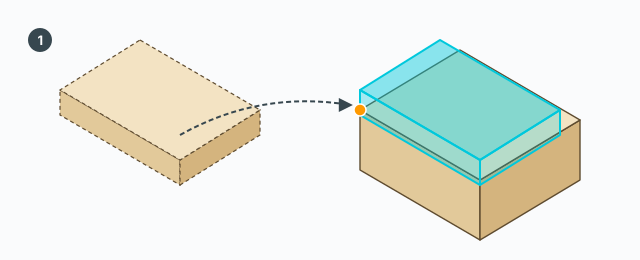
The snap depends on what is under the cursor:
- Vertex — the nearest vertex of the object is placed on that vertex.
- Edge midpoint — the object's center slides parallel to the edge until it lines up with the midpoint. The edge is drawn cyan and the midpoint is a cyan diamond. The orange dot is where the object lands; it is not always on the diamond.
- Edge or face — the vertex that travels the least is dropped onto the edge, or onto the face plane.
- Guide line / guide point — same as an edge or a vertex.
- Empty space — near the origin, the origin; otherwise the world X, Y, or Z axis closest to the view ray. That axis is drawn through the origin in red, green, or blue.
After the click the tool stays open. A cyan line joins the old spot to the new one, with an orange dot at each end. Esc at this point leaves the tool and keeps the aligned object.
Ctrl — leave a copy behind
Ctrl toggles (press once; you do not hold it). While it is on, a green + sits by the cursor. The click still moves the original to the target and leaves a copy where it was. The copy is made unique and keeps the material, layer, and name.
Arrow keys — turn 90° before the click
Only while you are still hovering:
- ↑ turns 90° about Z.
- ← turns 90° about Y.
- → turns 90° about X.
- Hold Shift and press the arrow to turn the other way.
The axis you just used is drawn through the snap in that axis colour (Z blue, Y green, X red). Each press adds another 90° about the snap point. Down arrow does nothing.
Tab — which face touches, boards only
Tab does not rotate. It cycles which level through the thickness lands on the snap: one face, the middle, the other face. Shift+Tab goes backwards.
The snap dot changes colour with the level: orange, yellow, green. This only runs when the part is board-like — its smallest dimension is under half the middle one. A chunky box or a stick ignores Tab, and the dot stays orange.
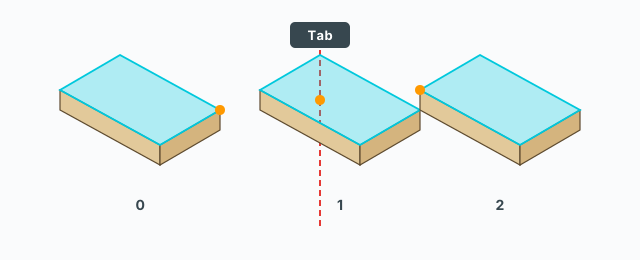
Typing millimetres
The VCB is always on. Type a number, optionally signed, then Enter. A comma is read as a decimal point.
- While hovering: the number pushes the preview that many millimetres further. Positive goes toward the locked face (along the normal, from the center toward the plane). Negative goes the other way. Until you click, this is only a preview — moving the mouse snaps again from scratch. Click to commit. If the object is already on that face (within 1 mm), typing commits the move immediately.
- After the align: a plain number pushes the placed object that many millimetres along the align direction and commits at once. It does not add a copy.
Typing /n — space the copies
After the align, type /n (for example /3) and press Enter. n is the number of gaps, not the number of extra copies.
The object is already at the end of the span. The tool adds copies at 0, 1/n, and so on, and stops short of the end so nothing stacks on the aligned object. Together with the object already there, you get n+1 evenly spaced objects. /3 gives 4. If Ctrl was on at the click (a copy is already at the start), the start is not cloned again — you still get n+1 objects.
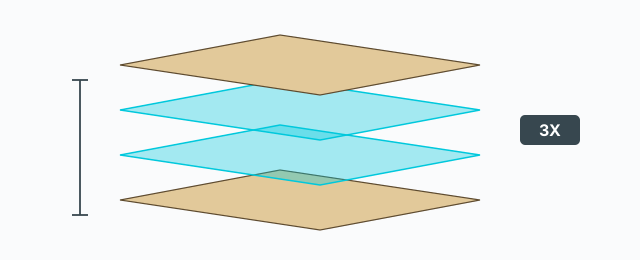
Enter writes the copies at once, one undo step named like Align array. Typing another /n erases that set and replaces it, still one undo step. A click when no /n is waiting exits the tool and leaves the aligned object.
Keys
- Click — pick the object, commit the align, or leave after an array.
- Ctrl — toggle leaving a copy at the start.
- ↑ ← → — 90° about Z, Y, X. Shift reverses.
- Tab — cycle the through-thickness face on a board-like part. Shift goes backwards.
- A number + Enter — push that many millimetres.
/n+ Enter — n gaps, n+1 objects.- Esc — leave the tool.
Common mistakes
- Tab does nothing: the part is not board-like (the thin dimension is not small enough next to the other two).
- A typed number vanishes when you move the mouse: while hovering, moving the mouse snaps again and drops the nudge. Type it again, then click.
- Two objects stacked at the end:
/ndoes not clone the end. Only the aligned object sits there. - A click leaves the tool: you are in the after-align phase and did not type
/n. The aligned object stays.