Cross Cut — split a group or component across one edge
What it does
Cross Cut splits a group or component with a cut perpendicular to the edge under the cursor. The cut has a width (kerf). The default is 3 mm, and the value is remembered.
Only a face that lives inside a group or component is accepted. A face loose in the model is ignored. Nothing has to be selected first.
Hover an edge, then click
- Click Cross Cut.
- Hover a face of a group or component. The nearest outer-loop edge sets the cut: the plane is perpendicular to that edge.
- Preview lines are orange. Cyan dots are snaps (the active one is brighter). Yellow crosses are the measure marks. A pink line is labelled in millimetres.
- Click to cut. The tool stays open and the preview clears.
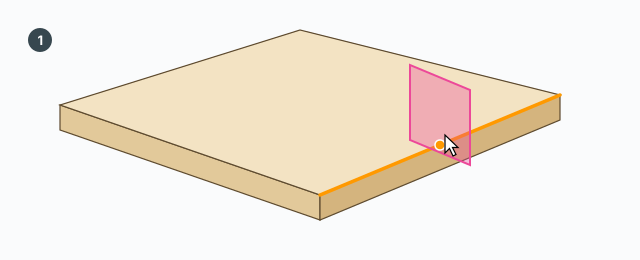
Snaps are the edge midpoint, a typed distance from either end of the edge, and crossings with guide lines (in the model and inside the hovered definition).
Each cut is one undo step named Cross Cut. The tool duplicates the board, makes each piece unique, intersects with cutter solids, then erases the original and the cutters. If the intersect fails, the step is aborted and there is no message box.
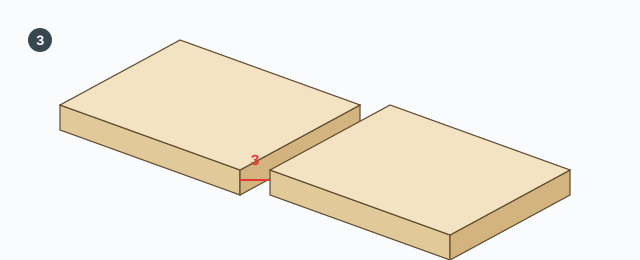
The Width chip
A Width chip sits at the top left. That is the kerf, in millimetres. Click the chip to type. The absolute value is used, and the smallest accepted value is 0.1 mm. The chip hint calls it the cut kerf / width.
Tab — which edge of the kerf is the mark
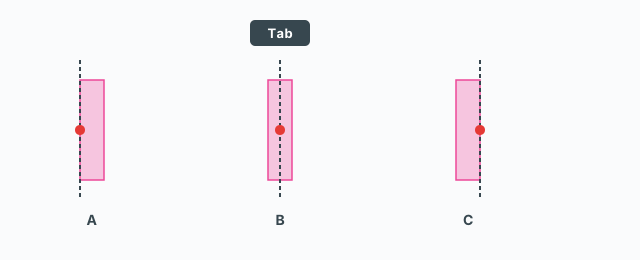
Tab cycles the mark: Near (mm) → Center (mm) → Far (mm), then back. The default is Center: the mark is the middle of the kerf.
- Near — the mark is the kerf edge toward the start of the edge (v0).
- Center — the mark is the middle of the kerf.
- Far — the mark is the kerf edge toward the end of the edge (v1).
Once a cut point exists, Tab keeps the center of the cut and only moves the mark. The VCB label follows: Near (mm), Center (mm), or Far (mm).
A number or /n
The VCB is always on.
- A number: millimetres from the start of the edge (v0). It is clamped to the edge length. A second snap is placed the same distance from the other end (v1). This clears divide mode if it was on.
/nwith n at least 2: split into n equal pieces, kerf included./3means three pieces. The Tab mark is ignored. The VCB label readsDivisionsand the value is/n. If the pieces would have no width after the kerfs, there are no cut points and a click does not cut.
Typing a number or /n does not cut by itself. The click cuts.
Keys
- Click — cut on the preview, or open the Width chip.
- Tab — Near → Center → Far.
- A number + Enter — place the cut that many millimetres from the start of the edge.
/n+ Enter — divide into n equal pieces.
Ctrl, Shift, Alt, and the arrow keys are not used. The tool does not handle Esc itself.
Common mistakes
- No preview on a loose face: the face has to live inside a group or component.
/nthen a click does nothing: the kerf used up each piece. Lower Width or lower n.- Reading the number as a nudge from the last cut: the number is a distance from the start of the edge you are hovering.