Contour — turn a drawn line into a solid strip
What does this tool do?
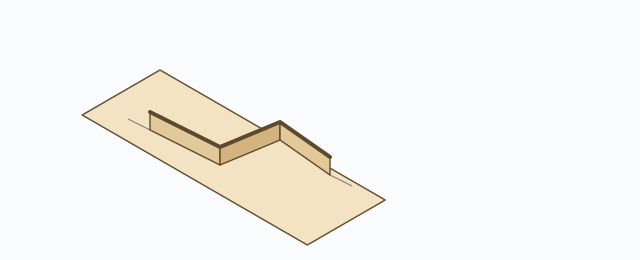
Contour turns a line drawn on one plane into a solid strip that follows it — with a thickness and width you choose. The original line is left untouched; the strip is created as its own group.
Use it when you need to:
- Quickly build battens, bands, or trims following a curve sketched on a board face.
- Turn a 2D outline (e.g. a decorative curve) into a 3D solid for joining/cutting.
- Extrude along a path without drawing a profile and running follow-me.
Basic steps
- Click the Contour icon. (You can pre-select edges — the tool adopts that selection.)
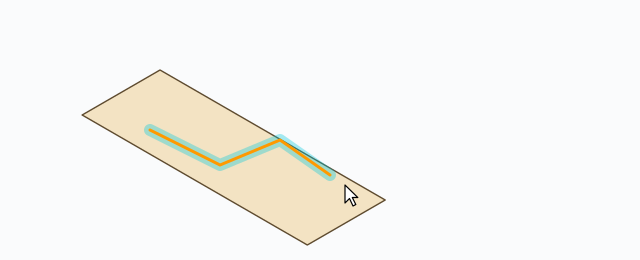
- Hover a line/edge: the whole connected edge run previews — the path in orange, the strip's band outline in cyan.
- Click to build: the solid strip rises beside the line as a group named Contour. The status bar reports Built 1 contour strip(s).
- Keep hovering and clicking other lines, or press Esc to exit.
Thickness / Width and typed input
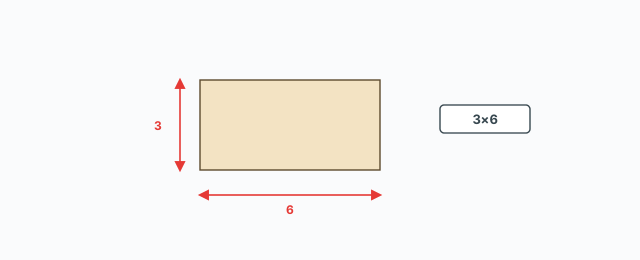
Two HUD chips: Thickness (default 3 mm) and Width (default 6 mm).
- Tab – cycle the focused input between Thickness and Width.
- Type a number and press Enter – set the focused one.
- Type
3x6– set both at once (thickness 3, width 6). - Click a chip directly – open its input box.
Keyboard
- Tab – switch the Thickness/Width input.
- Type a number + Enter – set the focused size;
3x6sets both. - Esc – exit the tool.
Common problems
- “No usable line here…”: the line must lie flat on one plane — a run that wanders through 3D space cannot become a strip.
- “Could not build a strip from this line”: the line is too small for the strip size, or self-intersects — try a smaller Width or simplify the line.
- No preview when hovering: the tool only sees edges in the currently open context — if the line lives inside a group, open that group first (double-click it), then hover.
- Each built strip is its own Undo step (Ctrl+Z).
0 bình luận
Danh sách video
Explode → Groups — convert components to plain groups
ABF Extra Label — arrow and board number
Rotate Label — turn the board label 90°
Flip Label — move the label to the other face
Find Nesting Parts — locate a board on the sheets
Nesting Editor — move parts, re-pack, and set cut order
ABF Extra Nesting — pack labelled boards onto sheets
Generate G-code — toolpaths on the nesting
Export Nesting DXF — one file per sheet
CNC relief circles — round a concave corner
Tenon helper — tenons and mortises where boards touch
Cam Lock — drill marks for cams, screws and dowels
Unsolid Trim — cut one solid with another, keep the labels
Unsolid Outer Shell — merge solids into one shell
Intersection Mark — stamp the section where boards meet
Solid Inspector — find holes and stray edges
Bend — round a square corner into an arc
Unfold — flatten a curved board for CNC kerf cutting
Cross halving join — mark half-lap regions where boards cross
CNC marking — a cut line or a pocket on a face
Edge banding — mark a board's side faces
Isolate selection — hide everything else
Deep Push — push a face from outside the object
Move Vertices — drag board corners by exact mm
Make Face — skin every closed edge loop
Draw board — a finished board from two corners
Contour — turn a drawn line into a solid strip
Pen Curve — draw and edit Bézier curves
Align — snap a group or component onto a face, edge, or point
Mirror — reflect across a face plane or along an edge
Rotate — turn the selection 90° about X, Y, or Z
Trim Side Faces — inset a board's outer side faces
Precise scale — slide one side of a group or component
Cross Cut — split a group or component across one edge
Layer manager — show, color, highlight, and focus tags
Component Inventory — tally parts, hardware, edge band, and prices
Label Print — print labels for boards in the nesting
Warehouse — local models, V-Ray materials, and assets
Settings — account, nesting, and toolbar
Color — select every object that uses the picked material
Remove Color — clear materials on the selection
Dumb Scale — set the world width, depth, or height of the selection
Hover dimensions — width, depth, and height on the object under the cursor
Instance Rename — rename the selected groups and components