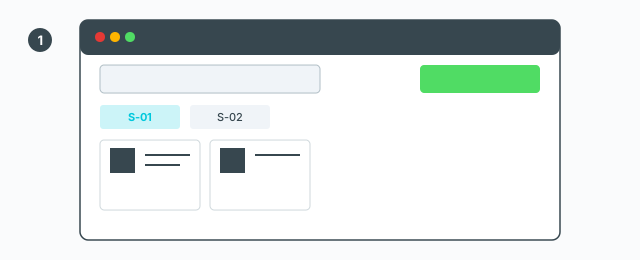
Label Print — print labels for boards in the nesting

What it does

Label Print opens Label Print for the boards in the __ABF_Nesting group. The toolbar status says so: print labels for boards in that group. With no nesting, or if the top/bottom check fails, there are no labels. The empty line says there are no labels yet and to run ABF nesting, then open the dialog again.

The toolbar button does not need a selection. Nesting Editor can open the same dialog for only some of the parts.

Three areas

  1. The tree on the left: a search box, a master checkbox, a note card, a collapsible block per sheet, and a checkbox per part. Search by number, name, or material — press Enter.
  2. The preview: each label shows the brand, the title, the size, the material, the part outline with edge-band numbers, a small picture of the sheet, and a QR code when that is on.
  3. Settings beside the preview.
Sheet and part tree on the left, label preview in the middle, settings on the right

On each label

  • The index, the display name, the material (the thickness suffix is stripped), and the size as width × height in millimetres.
  • The part outline, holes, markers, and numbered edge-band marks. The band list sits next to the drawing.
  • A thumbnail of the sheet.
  • QR: turn on QR Code, then Part ID and/or Part name. There is no barcode.
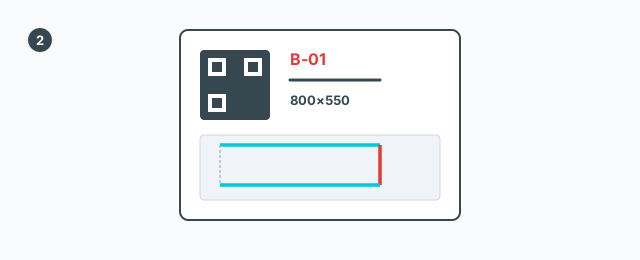
One label: size, material, outline with edge-band numbers, and a QR code

Print and PDF

The default label size is 58 × 38 mm. Change Width and Height under Label size. Brand name and Title are printed on the label. Save settings stores them in the dialog (this browser); until you save, the preview does not pick them up. A line then reads saved.

Print Label opens the system print dialog. The hint on the dialog says to pick a printer and a paper size that match the label ratio, and to export a PDF as well. PDF opens the save box at once. After you pick the file, a spinner stays up while the labels are drawn into tem.pdf, then the file is written. The preview stays put. If the PDF library does not load, PDF falls back to the print dialog. There is no separate thermal-printer driver.
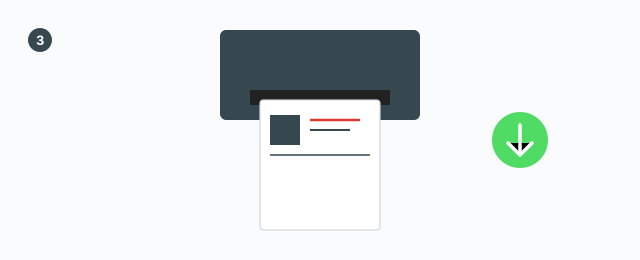
Print Label opens the print dialog; PDF asks where to save tem.pdf

Print, PDF, and saved settings do not change the model and have no undo.

Keys

Enter in the search box filters the tree. There are no other shortcuts.


0 bình luận

Đăng nhập để bình luận

Danh sách video

Explode → Groups — convert components to plain groups
ABF Extra Label — arrow and board number
Rotate Label — turn the board label 90°
Flip Label — move the label to the other face
Find Nesting Parts — locate a board on the sheets
Nesting Editor — move parts, re-pack, and set cut order
ABF Extra Nesting — pack labelled boards onto sheets
Generate G-code — toolpaths on the nesting
Export Nesting DXF — one file per sheet
CNC relief circles — round a concave corner
Tenon helper — tenons and mortises where boards touch
Cam Lock — drill marks for cams, screws and dowels
Unsolid Trim — cut one solid with another, keep the labels
Unsolid Outer Shell — merge solids into one shell
Intersection Mark — stamp the section where boards meet
Solid Inspector — find holes and stray edges
Bend — round a square corner into an arc
Unfold — flatten a curved board for CNC kerf cutting
Cross halving join — mark half-lap regions where boards cross
CNC marking — a cut line or a pocket on a face
Edge banding — mark a board's side faces
Isolate selection — hide everything else
Deep Push — push a face from outside the object
Move Vertices — drag board corners by exact mm
Make Face — skin every closed edge loop
Draw board — a finished board from two corners
Contour — turn a drawn line into a solid strip
Pen Curve — draw and edit Bézier curves
Align — snap a group or component onto a face, edge, or point
Mirror — reflect across a face plane or along an edge
Rotate — turn the selection 90° about X, Y, or Z
Trim Side Faces — inset a board's outer side faces
Precise scale — slide one side of a group or component
Cross Cut — split a group or component across one edge
Layer manager — show, color, highlight, and focus tags
Component Inventory — tally parts, hardware, edge band, and prices
Label Print — print labels for boards in the nesting
Warehouse — local models, V-Ray materials, and assets
Settings — account, nesting, and toolbar
Color — select every object that uses the picked material
Remove Color — clear materials on the selection
Dumb Scale — set the world width, depth, or height of the selection
Hover dimensions — width, depth, and height on the object under the cursor
Instance Rename — rename the selected groups and components