Settings — account, nesting, and toolbar

What it does

Settings opens GG Cabinet Tools — Settings. The line under the title reads «GG Cabinet Tools — versions»; that is only a subtitle. There is no Versions tab. Three tabs: Account, Nesting, Toolbar.
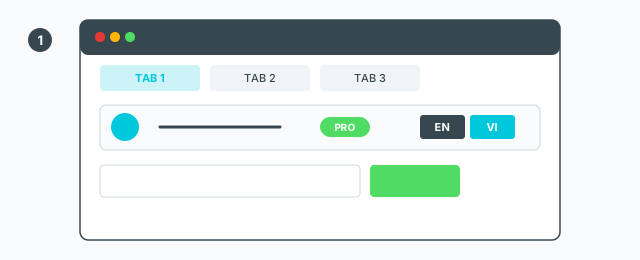
Settings dialog with Account, Nesting, and Toolbar tabs

Account

  • Email and a plan badge. On Pro: N Pro days left, or Lifetime Pro.
  • Go Pro — opens the upgrade dialog.
  • EN / VI — switch the plugin language. The button group is labelled Language.
  • Sign Out.
  • Current version and the version string that is running.
  • A Promo code field and Redeem. Empty shows «Enter a code first.» While it sends, «Applying…»

Nesting

The section title is Nesting (ABF Extra Nesting). The subtitle is: default margins used when packing boards onto sheets.

  • Margin between parts (mm)
  • Margin to sheet border (mm)
  • Refine step (mm)
  • Default sheet size (mm) — width and height
  • Nest parts into holes
  • Allow 90° rotation to fit
  • Pack two-sided boards first
  • Clear material of failed objects
  • Nesting direction — two radios, the min corner or the max corner
  • Auto-set cut layers after nesting

Save writes the values and reports «Saved». Restore defaults only fills the form; the status line says the defaults are loaded and to press Save to apply.
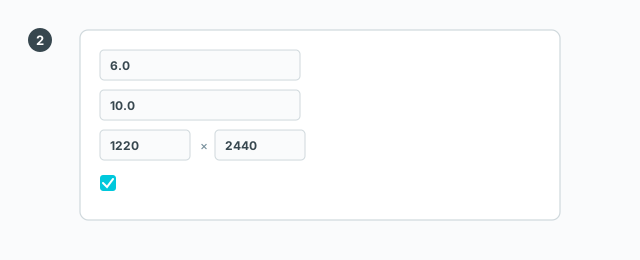
Nesting tab: margins, sheet size, checkboxes, and Save

Toolbar

The title is Toolbar icons. Drag to reorder. Untick to hide an icon. Changes apply after you restart SketchUp.

Each row: a drag handle, the icon, the name, a shortcut badge (or a dash if none is assigned), a copy-name button, a play button (opens that tool's guide: the video and how to use it), and a visibility switch.

Copy name copies the tool name so you can paste it into SketchUp's shortcut filter, and shows a message about that. Save and Reset to default both report: saved — restart SketchUp to apply.
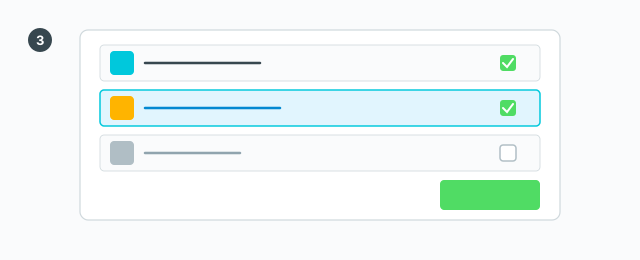
Icon list: drag to reorder, hide switch, play button opens the guide

0 bình luận

Đăng nhập để bình luận

Danh sách video

Explode → Groups — convert components to plain groups
ABF Extra Label — arrow and board number
Rotate Label — turn the board label 90°
Flip Label — move the label to the other face
Find Nesting Parts — locate a board on the sheets
Nesting Editor — move parts, re-pack, and set cut order
ABF Extra Nesting — pack labelled boards onto sheets
Generate G-code — toolpaths on the nesting
Export Nesting DXF — one file per sheet
CNC relief circles — round a concave corner
Tenon helper — tenons and mortises where boards touch
Cam Lock — drill marks for cams, screws and dowels
Unsolid Trim — cut one solid with another, keep the labels
Unsolid Outer Shell — merge solids into one shell
Intersection Mark — stamp the section where boards meet
Solid Inspector — find holes and stray edges
Bend — round a square corner into an arc
Unfold — flatten a curved board for CNC kerf cutting
Cross halving join — mark half-lap regions where boards cross
CNC marking — a cut line or a pocket on a face
Edge banding — mark a board's side faces
Isolate selection — hide everything else
Deep Push — push a face from outside the object
Move Vertices — drag board corners by exact mm
Make Face — skin every closed edge loop
Draw board — a finished board from two corners
Contour — turn a drawn line into a solid strip
Pen Curve — draw and edit Bézier curves
Align — snap a group or component onto a face, edge, or point
Mirror — reflect across a face plane or along an edge
Rotate — turn the selection 90° about X, Y, or Z
Trim Side Faces — inset a board's outer side faces
Precise scale — slide one side of a group or component
Cross Cut — split a group or component across one edge
Layer manager — show, color, highlight, and focus tags
Component Inventory — tally parts, hardware, edge band, and prices
Label Print — print labels for boards in the nesting
Warehouse — local models, V-Ray materials, and assets
Settings — account, nesting, and toolbar
Color — select every object that uses the picked material
Remove Color — clear materials on the selection
Dumb Scale — set the world width, depth, or height of the selection
Hover dimensions — width, depth, and height on the object under the cursor
Instance Rename — rename the selected groups and components