Instance Rename — rename the selected groups and components
What it does
Instance Rename opens the Rename dialog. It renames the groups and components in the SketchUp selection. There is no hover tool in the view. The toolbar status still talks about click, Shift, Tab, and Esc as if it were a drawing tool; the dialog is where the work happens.
The top line reads «N object(s) selected». Auto-hide: On / Auto-hide: Off — when on, a rename hides those objects and clears the selection. Unhide shows what is hidden in the active context. Clear ID strips a leading run of non-letters from the name. One undo step: Rename instances, or Clear leading IDs.
Three fields
- Name (rename) — replaces the whole name.
- Prefix (prepend) — adds to the start. An empty field and Enter removes the current prefix.
- Suffix (append) — adds to the end. An empty field and Enter removes the suffix.
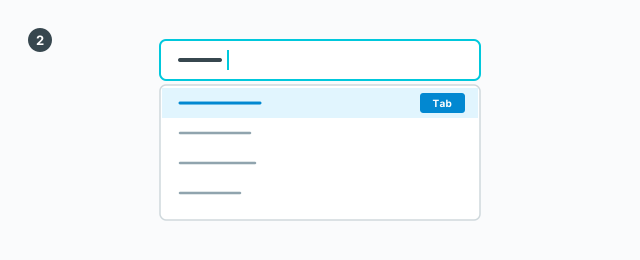
Clear prefix and Clear suffix strip that piece from the selection. Typing in a field opens suggestions from the saved names: the closest name is first, including when the query keeps its accents («tần» lists «tầng» before «nóc tầng dưới»). Initials of words still match when the query has no accent. There is no built-in list of names such as HOI or DAY. Those strings appear only if a saved name contains them.
Keys in a field
- ↑ ↓ — move the highlight in the suggestions.
- Tab and Shift+Tab — move through suggestions. They do not apply.
- Enter — apply the highlighted row, or create the text you typed. The create row reads «+ Create & apply».
- Esc — close the suggestion list. It does not close the dialog.
After a name, prefix, or suffix is applied, the text in that field and in the list search stays. The object list is not searched again: the rows already on screen keep their places and show the new name.
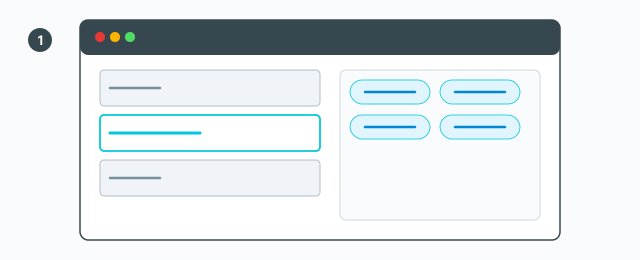
Saved names are grouped A–Z. Click a chip to apply it. The × on a chip removes that chip. A small chevron on the seam between the object list and the chips hides that column and shrinks the window; click it again to show the chips and widen the window. The object list is at least 400px tall. Only that list and the chips column scroll vertically. Saved names, prefixes, and suffixes use the same chips: three equal chips on a row, grouped A–Z. Typing in the name, prefix, or suffix field leaves only chips in all three columns that contain that text, accents ignored (canh still leaves cánh). Clearing the field shows every chip again. The chips column is only as wide as those three chips. The list side stays at least 500px wide and can be dragged wider. Closing or opening the chips column is remembered the next time the dialog opens. Names sync from the account; prefixes and suffixes are stored on this computer.
The object list
Objects in the list: a search box, «Search by label number or name — press Enter». Columns # and Name. Click a row; Ctrl toggles; Shift selects a range. Find-in-model selects those parts in the model. Isolate hides the rest. Empty list: «— no objects in the list —». No match: «— no match —».
Apply runs on every selected group or component. Faces and edges are not renamed.