Move Vertices — drag board corners by exact mm
What does this tool do?
Move Vertices drags individual board vertices along the X/Y/Z axes by an exact distance — the fast way to chamfer a corner, adjust a groove mouth, or lengthen/shorten one end of a board without redrawing it.
Use it when you need to:
- Shift a board corner by a specific amount (e.g. widen a groove mouth by 2 mm).
- Skew an edge by moving its two end vertices.
- Adjust a board's shape after it is built, in true world coordinates.
While the tool runs it turns on X-ray and color-by-tag so vertices are easy to see; both are restored on exit. All distances are measured in world coordinates.
Basic steps
- Click the Move Vertices icon. If something is already selected, only vertices inside that selection are scanned; otherwise the whole model is scanned (hidden objects/tags are skipped).
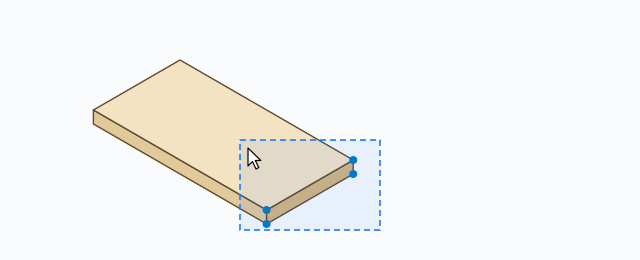
- Drag a selection box (dashed blue rectangle) across the vertices to move — captured vertices turn into blue dots.
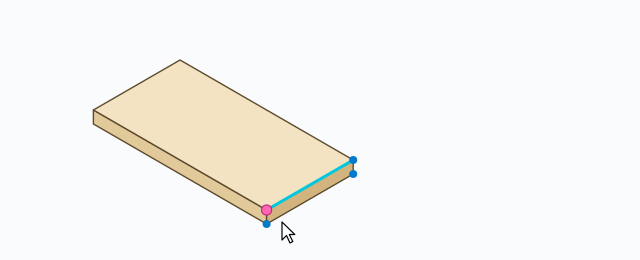
- Click the arrow's start point: a pink dot appears. The start point snaps to scanned vertices, edge endpoints, midpoints, guides, the axes and the origin; the edge under the cursor highlights cyan.
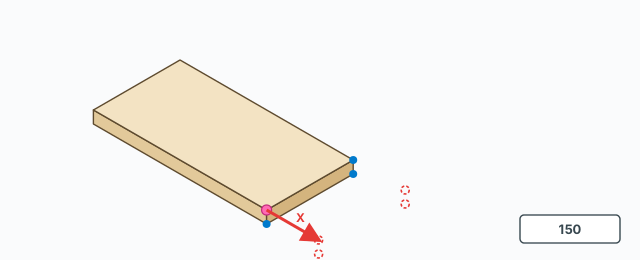
- Move the mouse: an axis-colored arrow (X red, Y green, Z blue) auto-locks to the nearest world axis, with preview dots showing where the vertices will land.
- Click the second point, or type the mm and press Enter — the vertices move by exactly that. The tool then returns to Select.
Axis locking and typed input
- The arrow auto-locks to the world axis nearest your drag direction.
- Tab – cycle the locked axis Z → X → Y.
- ↑ locks Z (blue), → locks X (red), ← locks Y (green), ↓ releases the lock (the axis follows the cursor again).
- Ctrl – toggles free move: a gray arrow sliding on a screen-parallel plane.
- The measurements box (VCB) only accepts input while dragging: type the mm and press Enter — the sign follows which side of the start point the cursor is on.
Keyboard
- Tab – cycle the axis lock (Z → X → Y).
- ↑ / → / ← – lock Z / X / Y; ↓ – release.
- Ctrl – free move.
- Esc – cancel the current drag (or exit the tool).
Common problems
- The box catches no vertices: vertices on hidden objects/tags are skipped; with an active selection only its vertices are scanned — clear the selection to scan the whole model.
- Typing does nothing: the VCB only takes a number after the start point is clicked, while the arrow is out.
- Vertices on arcs/curves: arcs and curves move as whole edges — they are not re-shaped.
- Wrong axis: watch the arrow color — red is X, green is Y, blue is Z; use Tab or the arrow keys to lock the right axis before clicking.
- The whole move is one Undo step (Ctrl+Z).
0 bình luận
Danh sách video
Explode → Groups — convert components to plain groups
ABF Extra Label — arrow and board number
Rotate Label — turn the board label 90°
Flip Label — move the label to the other face
Find Nesting Parts — locate a board on the sheets
Nesting Editor — move parts, re-pack, and set cut order
ABF Extra Nesting — pack labelled boards onto sheets
Generate G-code — toolpaths on the nesting
Export Nesting DXF — one file per sheet
CNC relief circles — round a concave corner
Tenon helper — tenons and mortises where boards touch
Cam Lock — drill marks for cams, screws and dowels
Unsolid Trim — cut one solid with another, keep the labels
Unsolid Outer Shell — merge solids into one shell
Intersection Mark — stamp the section where boards meet
Solid Inspector — find holes and stray edges
Bend — round a square corner into an arc
Unfold — flatten a curved board for CNC kerf cutting
Cross halving join — mark half-lap regions where boards cross
CNC marking — a cut line or a pocket on a face
Edge banding — mark a board's side faces
Isolate selection — hide everything else
Deep Push — push a face from outside the object
Move Vertices — drag board corners by exact mm
Make Face — skin every closed edge loop
Draw board — a finished board from two corners
Contour — turn a drawn line into a solid strip
Pen Curve — draw and edit Bézier curves
Align — snap a group or component onto a face, edge, or point
Mirror — reflect across a face plane or along an edge
Rotate — turn the selection 90° about X, Y, or Z
Trim Side Faces — inset a board's outer side faces
Precise scale — slide one side of a group or component
Cross Cut — split a group or component across one edge
Layer manager — show, color, highlight, and focus tags
Component Inventory — tally parts, hardware, edge band, and prices
Label Print — print labels for boards in the nesting
Warehouse — local models, V-Ray materials, and assets
Settings — account, nesting, and toolbar
Color — select every object that uses the picked material
Remove Color — clear materials on the selection
Dumb Scale — set the world width, depth, or height of the selection
Hover dimensions — width, depth, and height on the object under the cursor
Instance Rename — rename the selected groups and components