Intersection Mark — stamp the section where boards meet
What does this tool do?
Intersection Mark stamps a flat marker (a face inside a tagged group) onto a target board, exactly matching the intersection section between the source board and the target — so the CNC knows where to cut the seat or drill where two boards meet (dadoes for shelves, dividers, and so on).
Use it when you need to:
- Mark the dado position on a cabinet side where a shelf/divider plugs in.
- Mark the section of a rail passing through another board.
- Stamp a whole batch of intersection marks across a cluster of touching boards.
The mark is computed from the true solid intersection: per connected piece, holes preserved, clipped to the target's nearest front/back face. Rectangular sections get directional width offset/extend; complex sections are only outset uniformly.
Basic steps
- Select the source board (the one whose edge/section touches another board), then click the Intersection Mark icon. The tool finds every target the source penetrates, isolates the cluster, and turns on X-ray with color-by-tag. (With nothing selected, start the tool and click to pick the board.)
- Hover a target board: a green preview appears — the exact intersection section on the target's big face.
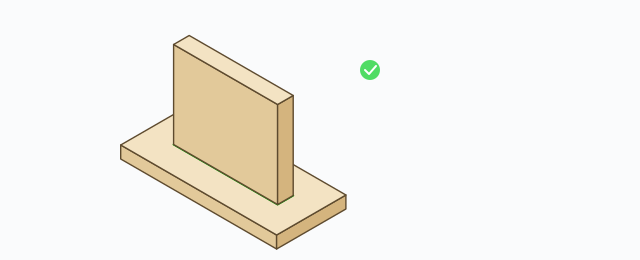
- Click to stamp: a flat marker group is created inside the target, on the preset's tag (default
ABF_Intersect_Z9).
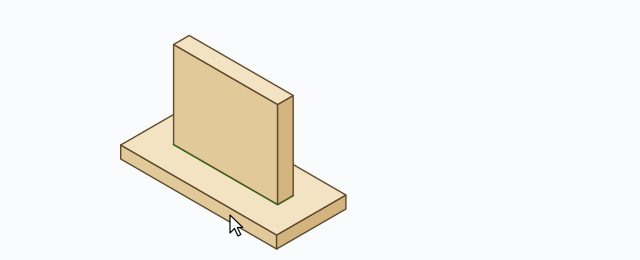
- Repeat for the other targets. Esc exits.
Click actions
- Click a target – stamp the marker at the preview.
- Shift+Click – stamp all targets of the source board at once.
- Double-click the source board – also stamps all of its targets.
- Click another board – make it the new source.
- Click empty space – clear the source.
HUD, typed input and presets
The on-screen chip row: ⚙ (open settings), Width+ (extra mark width, mm), Extend (stretch the mark past the intersection, mm), ✓ Mark all. Below it sits the preset pill row — click to switch presets quickly. Type a number and press Enter to set Width+ directly.
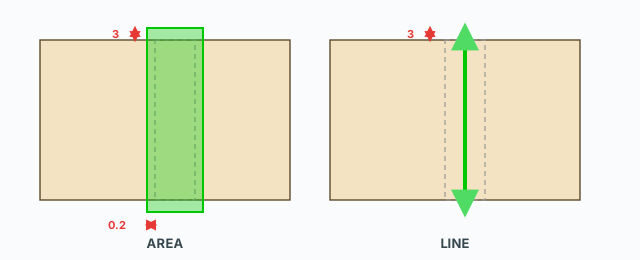
The settings dialog (Intersection settings) holds: Width offset (mm), Extend (mm), Tag/Layer, Mode (Area/Line), and the preset area (name, Save preset, Add preset, Delete, Reset defaults). Default preset: tag ABF_Intersect_Z9, extend 3 mm, width offset 0.2 mm, Area mode.
Two mark modes: Area and Line
- Area – the mark is a filled face matching the intersection section, widened by Width+ and lengthened by Extend. Use it for pockets cut along the outline.
- Line – the mark is the section's centerline; width offset does not apply, only extend at the two ends. Use it when the CNC runs the tool along the line.
The mode belongs to the preset — switching presets switches the mode too.
Keyboard
- Shift+Click – mark every target.
- Double-click the source – mark all of its targets.
- Type a number + Enter – set Width+.
- Esc – exit the tool.
Common problems
- No preview: the source does not actually touch/penetrate the target, or you are hovering a non-target board. Check that the two boards intersect.
- A board was skipped: boards with a too-complex outline are skipped, with a warning at the bottom-left of the screen.
- Overlapping marks: marks that overlap on the same tag merge automatically — no need to delete the old mark before re-stamping.
- Each stamp is its own Undo step — Ctrl+Z removes only the last stamp, not the whole batch.