Component Inventory — tally parts, hardware, edge band, and prices
What it does
Component Inventory opens a dialog of the same name. Nothing has to be selected. The tooltip is: open the component inventory / statistics dialog. The numbers come from the current nesting and from boards that are in the model.
Two tabs: Accessories (the price table) and Parts (one row per part). On Parts every cell is editable. Columns fit their content, and the Profile column takes the remaining width. Drag the right edge of a column header to set its width; that width is remembered. Each row has a header, as in Excel. Click a column header to choose which values stay visible. Right-click the corner where the row headers meet the column headers to show or hide columns; the choice is remembered. Right-click a row header to add or remove a row at that position. Right-click a column header to add a column at that position, or to remove a column you added. The default columns are idx, Length, Width, Grain, Material, Label, the edge-band columns, Note, and Profile last. idx is the board index. The Profile column toggles the board outline, at most 300×300 and centered on that row: only edges of 17 mm or longer are dimensioned; a matching opposite edge is dimensioned once; consecutive edges of nearly the same length with a slight change of direction are not dimensioned. Holes are always drawn; hole dimensions appear only when there are one or two holes. Dimension lines are 60% opacity, sit close to the edge, and always stay outside the outline. The numbers rotate with the dimension line and sit in the empty space. Double-click a dimension line, including its extension lines, to remove that line. Double-click an edge that already has a dimension to remove that dimension. Double-click an edge that has none to add one. Double-click a dimension number to edit it. Click a point on an edge, click a second point, then drag out to dimension the distance between those points; the points snap to edges. Drag straight up or down and the dimension snaps horizontal, measuring the width between the points. Drag sideways and it snaps vertical, measuring the height. Under each outline is that board's idx in bold black. Numbers in the table are rounded to one decimal place. Every row with the outline on is colored, and that color can be changed.
What is counted
- Connectors & hardware — from the ABF counter attribute, otherwise minifix, otherwise the name.
- Statistics objects — objects you tagged with a statistics type, plus marking markers.
- Edge banding — metres of band on boards that sit outside the
__ABF_Nestinggroup, multiplied by the edge-band preset coefficient. The band columns on the Parts tab stay in millimetres. - Boards — a count of nesting sheets by material and thickness (sheets whose name ends with
-bottomare skipped). The unit is Sheet. There is no sheet-yield percent. - Other costs — rows you add or remove yourself.
The nesting root is not walked when boards and hardware are counted. A board that cannot be read is skipped.
Prices
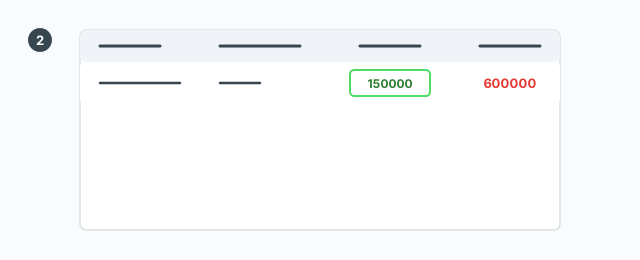
On Accessories, edit the unit price, coefficient, unit, type, or description. The amount is quantity × unit price × coefficient. Save to model writes it into the model and, when available, the price book on the server. Closing with unsaved edits asks whether to save. The X or Cancel leaves the dialog open.
Refresh tallies again from the current nesting and rebuilds the Parts tab: added columns, removed columns, added rows, and removed rows are cleared. Columns you showed or hid and widths you dragged stay as they are. Every dimension line is cleared, including the lines drawn on the edges. Double-click an edge to add one again. A notice then says the refresh finished. While the dialog is unlocked, every open rescans. While it is locked, the dialog shows the saved snapshot and does not rescan until you unlock.
Lock is allowed only after a save. Unlock asks for the password of the GG account you are signed in with. While locked, save and refresh are refused.
Create a statistics object
Create statistics object needs something selected. With an empty selection a message tells you to select first. The box asks for a name, a type (by quantity or by length), a unit, a unit price, a coefficient, and tags. It writes the statistics attributes onto the component definition, adds the leader inside the component, and marks the object as not a board. Dragging that component out of the library still counts it. One undo step.
Excel
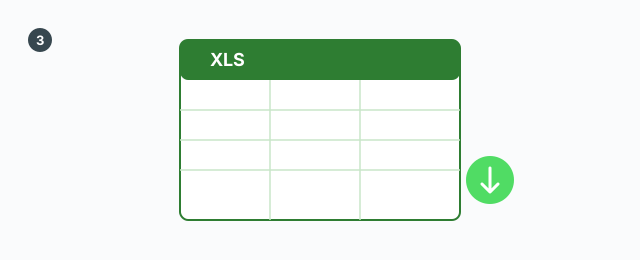
Export to Excel writes one .xlsx file, named from the model title. The detail sheet matches the Parts tab as it stands: visible columns, rows after the filter, edited text, and row and column colors. Hidden columns are left out. A row with its outline on includes that picture. The other sheet is the accessories table. Sheet names follow the plugin language: Vietnamese uses Tóm tắt and Chi tiết, English uses Summary and Detail. The file write is not a model undo step.
Keys
In the unlock box, Enter submits the password. There are no other shortcuts.