CNC relief circles — round a concave corner
What does this tool do?
CNC relief circles places a circle at a concave corner of the boards you selected, so the CNC cutter has room to swing into the corner. Each circle is a group inside the board, on the tag you choose (default ABF_OVERCUT).
Use it when an inside corner of an outline, or a corner of a hole, is sharper than the cutter and needs a relief loop.
Before you start
Select one or more groups or components, then click CNC relief circles. With nothing selected, a message asks you to select first. While the tool runs, everything else is hidden. Leaving the tool, or pressing Esc, shows it again.
What you see
The top bar, left to right:
- OUTER / INNER — the outer boundary of a face, or a hole loop inside it. OUTER is the default.
- Notice Off / Notice On — when on, each placement ends with Placed … circles.
- Preview — diameter of the circle you see, in mm. Default 5.
- Circle — diameter of the circle that is actually written, in mm. Default 6.
- Tag — layer name for the circles. Default ABF_OVERCUT.
Click a chip to type a new value. The numbers and the tag are remembered.
Corners that qualify are drawn in crimson. The one nearest the cursor (within a small distance on screen) turns pink and thicker — that is the corner a click will place.
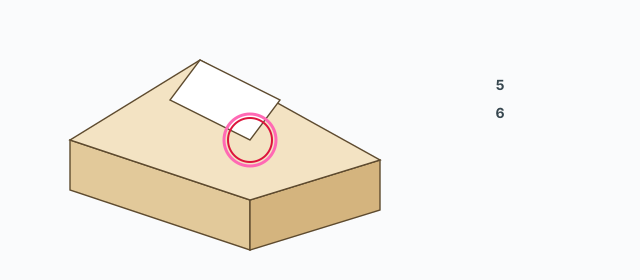
Placing a circle
- Orbit so the face with the concave corner looks toward you. A face turned away, or a face that is too small, has no candidates.
- Move onto the pink circle.
- Click. The real circle is built at the Circle diameter, its centre offset from the vertex by the Tab mode below. The click is one Undo step.
A corner that already has a circle on the same plane, closer than one Circle diameter, is skipped so you do not stack a second one.
If the board is a component with several copies, the copy you place on is made unique first.
Shift — every corner on the same plane
Hold Shift: every candidate on the same plane as the one under the cursor turns gold. Click places all of those gold corners in one go, not only the pink one.
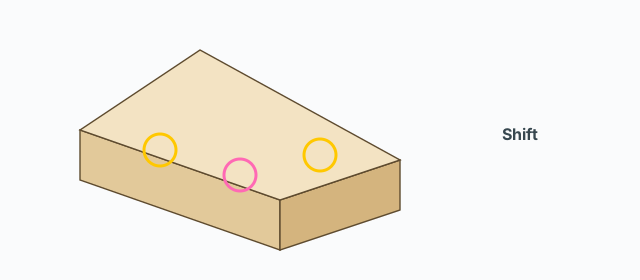
Tab — where the centre sits
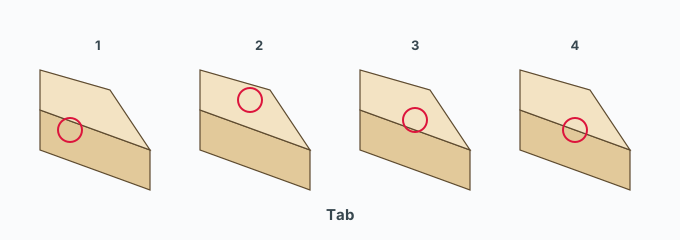
Press Tab to cycle four ways to place the centre. The status line shows the English name of the current one. The default is bisector. From there, each Tab moves on:
- short edge — the centre shifts along the shorter edge, by one radius.
- long edge — the centre shifts along the longer edge, by one radius.
- centroid — the centre stays on the corner vertex.
- bisector — the centre sits on the angle bisector, one radius in from the vertex.
The circle you see uses the Preview diameter. The circle written into the board uses the Circle diameter to place its centre (except centroid, which always stays on the vertex).
The VCB
- Type a number, for example
5or5.5— sets the Preview diameter. - Type
wand a number, for examplew6— sets the Circle diameter. - Anything else beeps, and the status line reminds you of the spelling.
Which corners qualify
- Only a concave corner, and not more open than 95°.
- The face has to face the camera. Orbiting rebuilds the list.
- OUTER uses the outside boundary; INNER uses hole loops. Switch to INNER to relieve a corner inside a cut-out.
Common problems
- No circles appear: nothing was selected before the tool, the face is turned away, or the corner is not concave or is too open. Face the camera, and try INNER if the corner is on a hole.
- The click places nothing: the cursor is not close enough (the circle has not turned pink).
- Fewer circles than the gold set: some corners already had a relief circle nearby, so they were skipped. Notice On tells you how many were new.
- The rest of the model vanished: the tool hides what you did not select. Leave the tool to bring it back.