CNC marking — a cut line or a pocket on a face
What does this tool do?
CNC marking lays a machining mark along an edge of a board: a line (Line) or a pocket region (Area), or a 2D shape you saved. The mark is stored inside the board, on the layer of the preset you are using. If a preset has no layer name, the fallback is ABF_Mark; each preset can name its own layer.
Use it to tell the CNC about an edge cut, a groove, a pocket, or a shaped marker placed at points along an edge.
When the tool opens
X-ray and colour-by-tag turn on while it runs, so edges hidden behind other faces stay visible. Leave the tool and the view goes back to how it was.
Top left:
- Save shape — capture the outline of one flat (2D) group or component that is selected, and store it as a preset.
- The gear — opens Marking settings: mode, parameters, preview limits, and the preset list.
- The Dim chip — ON / off for the dimension labels on the preview (useful on a saved shape).
- The Anchors chip — only for point-style markers. Click it to type how many anchor points.
The preset column on the left: click a name to load that preset (offset, layer, and Line or Area all come from it).
Place a mark
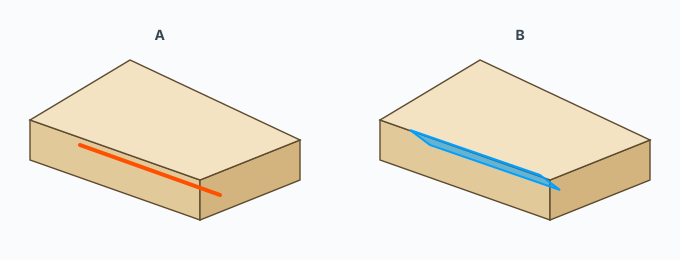
- Pick a preset. A line previews in orange. An area previews in blue.
- Move onto an edge of a board. The preview follows that edge.
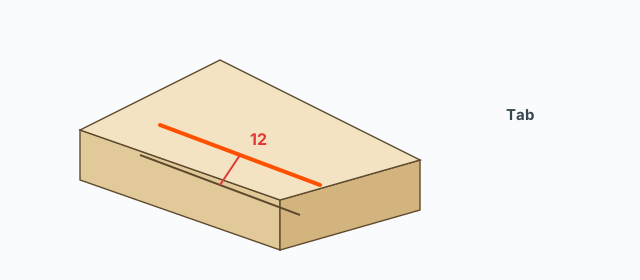
- Click to lock the edge. Move the mouse to change the offset. The distance in mm is in the VCB, labelled Offset.
- Click again on the board to commit. The mark is created, the edge unlocks, and the tool stays for the next edge. One commit is one Undo step.
Clicking empty space (not on a board) while an edge is locked drops the edge without committing.
Millimetres and Tab
Type a number and press Enter while the edge is locked: that is the size of the offset, in mm. The side (inward or outward) follows the side the mouse is pulling toward. Type 0 to sit exactly on the edge. If the edge is locked, typing also commits. The number is saved into the active preset.
In Area, press Tab to change what the pocket width is measured from: the centre, the near side, then the far side, then the centre again. The preview and the VCB number follow.
Point shapes and anchors
A shape preset or a saved 2D group places a marker at a point on the edge. It does not run the whole length the way Line and Area do.
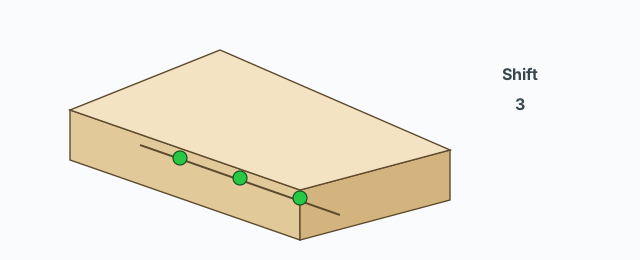
- Hold Shift after the edge is locked: every anchor lights green. Click stamps all of them at once.
- Type
/3(a whole number of 2 or more) to divide the edge into that many stations. A click stamps the station the cursor snapped to (green preview) and keeps the edge locked so you can stamp the rest. Shift still stamps every station in one click. - The Anchors chip opens Number of anchors so you can type that count without
/N.
/N does nothing for Line and Area — those always span the edge.
A preset with Ring turned on closes a loop when you lock the edge, and uses the offset from the line.
Save shape and settings
Save shape needs exactly one flat (2D) group or component selected. Otherwise it asks you to select one and try again. A box asks for the Preset name. The new preset shows up on the HUD.
In Marking settings you edit Line/Area, the offset from the line, the area width, the layer, the trim at both ends, mark-on-back-face, and the limits on segments and sharp corners (an outline past those limits skips the preview so SketchUp does not hang). Click a preset to load it, edit, then Save preset. Drag to set the order on the HUD. A preset you created can be deleted; restoring defaults keeps your custom presets.
Common problems
- No preview: the cursor is not on an edge of a board. X-ray is on so you can see edges behind other faces.
- Typing does not commit: the edge is not locked yet. Click it first, then type.
- /N does not divide the edge: the preset is Line or Area. Switch to a point shape, or just use the offset.
- Save shape fails: select exactly one flat group or component.
- Tag colours change after you leave: the tool puts colour-by-tag and X-ray back to what they were before it opened.