ABF Extra Nesting — pack labelled boards onto sheets
What does this tool do?
ABF Extra Nesting takes the boards you selected — the ones that already have a label from ABF Extra Label — and packs them onto sheets in the nesting group. Each board is rotated so its label arrow points down (sheet −Y). A two-sided board is copied onto a back-face sheet, mirrored.
Clicking the tool runs at once with the numbers already saved. This button has no margin box of its own. Change the numbers in Settings, section Nesting (ABF Extra Nesting), then Save.
Before you run it
- Boards are groups. A component is skipped, because a shared definition would edit every copy.
- ABF Extra Label has already run: an arrow and a board number. A board with no label is ignored and is not listed.
- A board that is flagged as labelled but has lost its label group is reported — a broken label, not an unlabelled board.
- Select the boards you want packed. With no group or component selected, a message asks you to select first.
What happens when you click
- If the model already has a nesting group, a box asks Create a new nesting root?
- Yes — delete the old group and create a new one.
- No — pack into the group that is already there. Boards of the same material and thickness go onto the matching sheets; when those are full, another sheet is added.
- Cancel — nothing is packed.
- If there is no nesting group yet, the tool creates one without asking.
- The status line shows progress: analysing, packing each material group, creating an overflow sheet.
- When it finishes, the camera looks straight down and zooms to the nesting group. The whole pack is one Undo step (ABF Extra Nesting).
Boards are grouped by material and thickness. Each group has its own sheet type. The first sheet of a new type uses Default sheet size — 1220 × 2440 mm until you change it.
What lands on a sheet
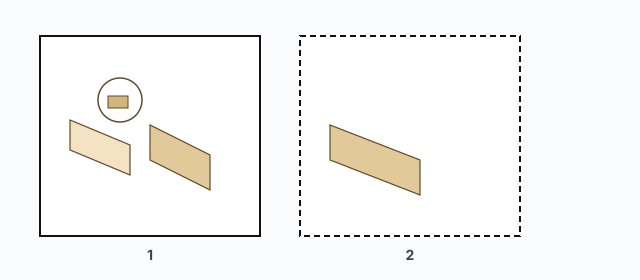
- The part's cutting outline, a black sheet border, and a small alignment square at the corner of the sheet.
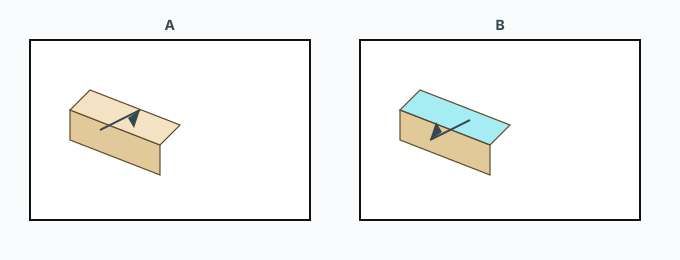
- A copy of the label arrow, pointing down.
- ABF marks that were on the source board (pockets, drills, and the rest) come with it.
- A banded edge gets a triangle of one size for that part. Edges shorter than 5 mm skip the triangle; the band is still recorded.
Boards with back-face machining are packed first (the default); within that group, larger boards go first. The back sheet is the mirror; its sheet label reads Back face. The top arrow points down; the back is the mirror of that across the sheet.
Settings — what this tool actually uses
Open Settings, section Nesting (ABF Extra Nesting). A value saved on this computer wins over the defaults. Restore defaults only loads them; press Save to apply. The decimal separator is a dot.
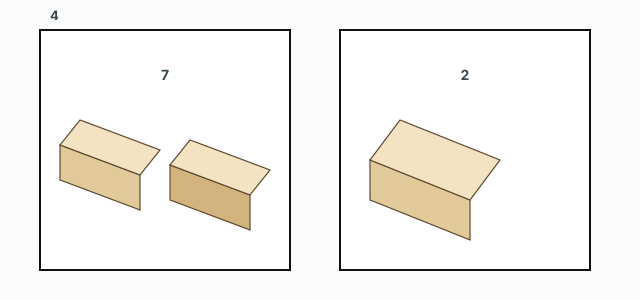
- Margin between parts (mm) — the gap between two parts. Factory value 7.
- Margin to sheet border (mm) — the gap to the sheet edge. Factory value 4.
- Refine step (mm) — how tightly a part is pulled up to that gap. Smaller sits closer.
- Default sheet size — Width × Height, used when a sheet has to be created from scratch.
- Nest parts into holes — on by default. A small part that fits a hole in a larger one is packed into that hole, still keeping the parts margin.
- Allow 90° rotation to fit — off by default. When on, a part that does not fit is tried at 90°. A part that turns will no longer have its arrow pointing down.
- Pack two-sided boards first — on by default.
- Clear material of failed objects — off by default. When on, a board that did not land on a sheet loses its material, the same as Remove material.
- Nesting direction — two arrow pictures. The x0,y0 corner (default) fills up a column, then steps right. The xmax,ymax corner fills down a column, then steps left.
- Auto-set cut layers after nesting — when on, every part is tagged with its cut-order layer (T/B/L/R bands) after the pack.
After the run
The result message names boards that did not land on a sheet and why (not a board, missing label, geometry that could not be packed, no matching sheet, and so on). Closing it selects those boards so you can fix them and run again. Boards that never had a label are not in this list.
If one board cannot be drawn, the run stops, that board is selected, and the message names it.
Common problems
- Nothing was packed: no labels yet, or only components, or nothing is a flat board with rectangular side faces. Run ABF Extra Label first and read its reasons.
- Arrows do not point down: 90° rotation is on. Turn it off when the shop needs every arrow the same way.
- A part will not sit in a hole: Nest parts into holes is off, or the hole is smaller than the part plus the margin.
- A new sheet is the wrong size: set Default sheet size and Save before you create a new nesting group.
- It looks frozen: watch the status line. A large batch repaints as it goes, so the picture lags the work.