Pen Curve — draw and edit Bézier curves
What does this tool do?
Pen Curve is a Corel-style Bézier pen inside SketchUp: place corner nodes, smooth nodes with handles, and re-shape the curve at any time. The result is an ordinary welded curve on a plane — usable by every other tool (Make Face, Contour, push/pull…).
Use it when you need to:
- Draw smooth curved outlines (rounded tabletops, ornaments, chamfer lines) instead of chaining arcs.
- Bend a straight line into a curve passing through an exact point.
- Re-shape an existing curve by dragging its nodes and handles.
Drawing a new curve
- Click the Pen Curve icon. The drawing plane is the face under the cursor at your first click — with no face there, it falls back to the ground plane through that point.
- Click – place a corner node (polyline-style).
- Click + drag – place a smooth node with two mirrored handles; drag to aim the tangent. Hold Alt while dragging to break the corner (independent handles).
- Click the first node – close the curve (a closed curve auto-creates a face). Clicking another pen curve's end node joins the two paths.
- Enter or double-click – finish the curve. Backspace – drop the last node. Esc – cancel the whole curve.
Editing a drawn curve
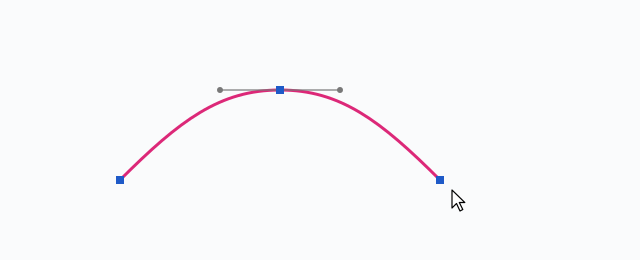
Click a pen curve to enter edit mode (pink curve, blue square nodes, the selected node in orange):
- Drag a node – move it; drag a handle – change the curvature (hold Alt to break the corner).
- Drag a segment's body – bend the whole segment through the cursor.
- Double-click a segment – insert a node there.
- Double-click an end node – continue drawing from that node.
- Delete – remove the selected node. Esc – leave edit mode.
Every drag is its own Undo step.
Bending lines and converting
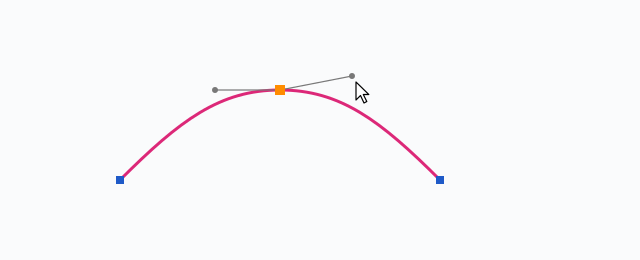
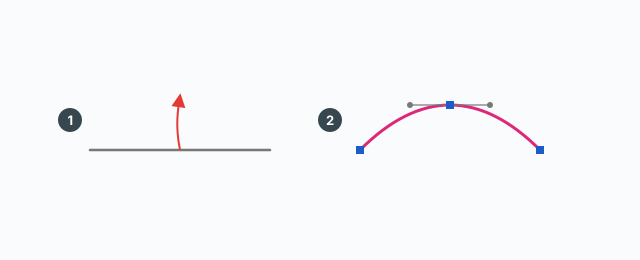
- Press + drag a plain straight line – bend it into a curve through the cursor; after release it stays open for editing. (A plain click on a line starts drawing from that point instead.)
- Double-click a plain line – the whole connected line run (polyline, rectangle…) becomes one pen path with corner nodes at every vertex, plus a new node where you clicked, open for editing. The run stops at branches, arcs/curves, or non-planar sections.
- Right-click menu “Convert to pen curve” – when the selection holds convertible lines/arcs/curves: each connected run becomes one pen path (lines keep corner nodes, arcs become exact Bézier pieces of ≤90°, other curves keep their vertices). Non-planar runs are skipped and reported on the status bar.
Segments
The Segments HUD chip (default 12, max 200, remembered between uses) controls how finely the curve is built into edges. Type a number and press Enter to set it quickly, or click the chip to enter one.
Keyboard
- Alt (held while dragging) – break the handle pair.
- Enter / double-click – finish the curve being drawn.
- Backspace – drop the last node while drawing; Delete – remove the selected node while editing.
- Esc – cancel drawing / exit editing.
Common problems
- “Could not convert a solid's edge…”: only loose lines lying on one plane can be bent/converted — edges belonging to a solid, or runs wandering through 3D, are refused.
- No face appeared: only a closed curve auto-creates a face — click exactly the first node to close it.
- A smooth node kinked: Alt was held by accident and split the handles — drag a handle again without Alt to re-mirror them.
- Curve too jagged or too heavy: adjust the Segments chip — fewer segments look angular, too many make the model heavy.
0 bình luận
Danh sách video
Explode → Groups — convert components to plain groups
ABF Extra Label — arrow and board number
Rotate Label — turn the board label 90°
Flip Label — move the label to the other face
Find Nesting Parts — locate a board on the sheets
Nesting Editor — move parts, re-pack, and set cut order
ABF Extra Nesting — pack labelled boards onto sheets
Generate G-code — toolpaths on the nesting
Export Nesting DXF — one file per sheet
CNC relief circles — round a concave corner
Tenon helper — tenons and mortises where boards touch
Cam Lock — drill marks for cams, screws and dowels
Unsolid Trim — cut one solid with another, keep the labels
Unsolid Outer Shell — merge solids into one shell
Intersection Mark — stamp the section where boards meet
Solid Inspector — find holes and stray edges
Bend — round a square corner into an arc
Unfold — flatten a curved board for CNC kerf cutting
Cross halving join — mark half-lap regions where boards cross
CNC marking — a cut line or a pocket on a face
Edge banding — mark a board's side faces
Isolate selection — hide everything else
Deep Push — push a face from outside the object
Move Vertices — drag board corners by exact mm
Make Face — skin every closed edge loop
Draw board — a finished board from two corners
Contour — turn a drawn line into a solid strip
Pen Curve — draw and edit Bézier curves
Align — snap a group or component onto a face, edge, or point
Mirror — reflect across a face plane or along an edge
Rotate — turn the selection 90° about X, Y, or Z
Trim Side Faces — inset a board's outer side faces
Precise scale — slide one side of a group or component
Cross Cut — split a group or component across one edge
Layer manager — show, color, highlight, and focus tags
Component Inventory — tally parts, hardware, edge band, and prices
Label Print — print labels for boards in the nesting
Warehouse — local models, V-Ray materials, and assets
Settings — account, nesting, and toolbar
Color — select every object that uses the picked material
Remove Color — clear materials on the selection
Dumb Scale — set the world width, depth, or height of the selection
Hover dimensions — width, depth, and height on the object under the cursor
Instance Rename — rename the selected groups and components