Nesting Editor — move parts, re-pack, and set cut order
What does this tool do?
Nesting Editor edits a nesting that is already in the model: drag a part on the top sheet, and the bottom face of a two-sided part follows, mirrored. Opening the tool looks straight down, framed on the nesting, and turns colour-by-tag on so cut lines show in their own colours. Leave the tool and the view goes back.
Only top-face parts can be picked and dragged. A selection is outlined in amber. Two-sided parts carry a tint (default cyan, about half transparent).
Drag and select
- Click Nesting Editor.
- Click a part to select it and drag. Release to drop. While Block is ON (the default), the part slides along other parts and the sheet border and does not overlap them.
- Shift+click only adds or removes the part from the selection. It does not start a drag.
- Drag on empty space to marquee-select. Hold Shift while marqueeing to add, without clearing the selection.
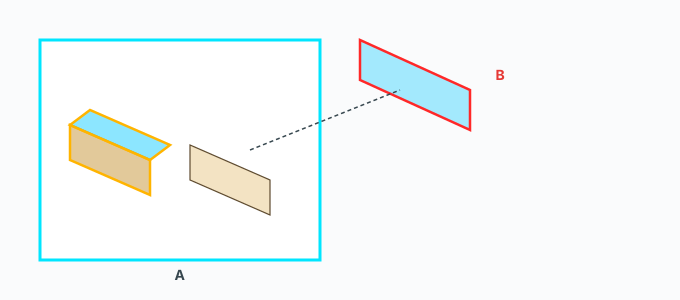
Dragging onto a sheet that has no free slot turns the outline red and the part follows the cursor. Releasing there puts the part back; it is not placed on top of the others. If the part is stuck against something and the cursor is over nearby free space, it can jump into a slot that fits.
Tab rotates the selected parts 90° as one group, about their shared centre. The bottom faces rotate the other way so the mirror still matches. The arrow keys move 1 mm per press; holding a key keeps sliding. The whole hold is one Undo step when you release the key.
Esc cancels a drag in progress and clears the selection.
The top bar, left side
Hover a button for its hint.
- The gear — Nesting Editor / cut-order settings. That dialog includes 2-sided overlay: Color and Opacity. Save, then return to the tool to see the new tint.
- The cut-order button — turn on machining-order layers.
- The outer-cut button — turn on outline mode.
- Block: ON / off — block overlaps while dragging.
- Gap — click to edit Collision gap (mm). Factory value 7, and it is the same parts margin ABF Extra Nesting uses.
- Border — click to edit Sheet border gap (mm). Factory value 4.
The middle of the screen
One row of buttons. From the left:
- Two arrows — move the active sheet earlier or later in the sheet order.
- Pack — marquee-select boards, then press it: those boards are nested onto the sheet first.
- Infill — drop the selected parts into empty slots of the same-material sheets, from sheet 1 to the last; a new sheet is added only when nothing fits. With nothing selected it asks you to select parts first.
- Flip the label onto the other face.
- Find and select the source 3D boards of the selected parts. With nothing selected, the status line says to select parts first.
- Rotate the label 90° on the selected parts.
- Draw an extra line, rectangle or circle; the eraser; edit cutting edges.
- The printer — print labels for the selected parts. With nothing selected it says to select parts first.
On each sheet
The sheet you are working on has a cyan outline.
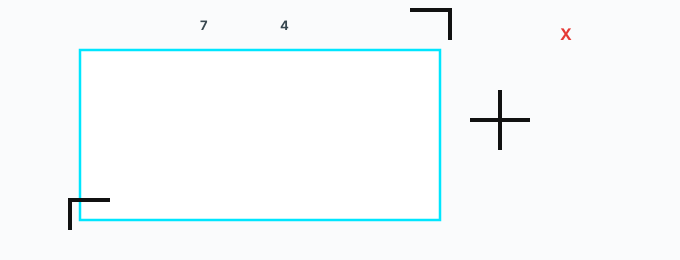
- Two black L marks outside two corners (cyan when you hover): click to re-pack that whole sheet, anchored at that corner. Parts that do not fit overflow onto a new sheet beside it. If something still cannot be placed, you hear a beep.
- The plus to the right of the sheet: add a sheet.
- A red X above a sheet appears only when the sheet is empty: delete that sheet.
- The small square above the top-right corner: the ruler. Ticks every 10 mm, a longer tick on multiples of 50 mm, and a running number every 100 mm. Changing the active sheet hides the previous ruler.
Extra shapes
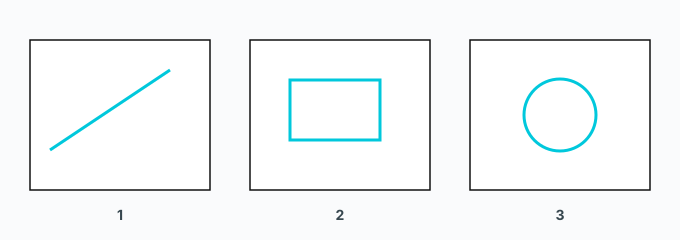
Click line, rectangle or circle. The button stays lit until you click it again or click another button. Click two points, or drag and release (the drag has to be longer than about 5 mm). The shape is clamped inside the sheet border. The preview is cyan; if it hits a part it turns red. With Block on, the shape is shrunk so it clears the parts.
Lines whose ends meet are joined into one polyline. A rectangle or circle that overlaps one of the same kind is merged into one outline. Hold Shift as you commit to keep it separate — no join and no merge.
The eraser: a click deletes one cut edge; hold Shift to delete the whole shape that edge belongs to. The cursor becomes an eraser.
Edit cutting edges
Click the edit-edges button. The status line says: marquee or Shift+click the cut edges, then drag or type a distance in mm to move them along X/Y. Type two numbers (X then Y), or one number to continue along the direction you last dragged. An edge that overlaps a part previews red. Clicking any other HUD button leaves edit mode and that button runs.
Cut order and outer cut lines
Cut-order mode hides the bottom sheets. Zigzag is the default: drag a stroke across parts. Each part the stroke crosses takes the layer of the preset you have picked, numbers climbing. Enter ends the stroke so the next click starts a new one. Type a whole number in the VCB to make the next assignment start at that index (for example 10, then 11, 12). The auto button assigns the sheet. Reset clears cut-order tags on every sheet.
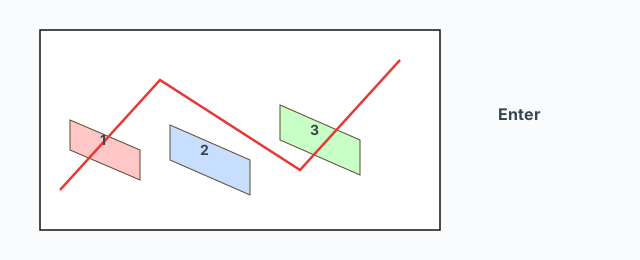
Outer-cut mode: pick edges, zigzag to number R_On, then create the outlines. The Offset and Extend chips (factory 3 mm and 3 mm) are the distance off the edge centre and how far each end runs past. The eraser removes one outline; delete-all removes every outer cut line. A number in the VCB sets where the next R_On index starts, the same way as cut order.
Common problems
- The drop will not stick: Block is on and the outline is red — the sheet under the cursor has no free slot. Release over free space on the same sheet, or turn Block off if you really want an overlap.
- The bottom face moved the other way: that is the mirror of the top, not a bad drag. Drag the top-face part.
- Print labels or infill does nothing useful: no part is selected.
- A new shape was swallowed by an old one: Shift was not held. Hold Shift as you release to keep the shape separate.
- The two-sided tint did not change: edit it from the gear, under 2-sided overlay, then Save.