Edge banding — mark a board's side faces
What does this tool do?
Edge banding marks a board's side faces (never the large top or bottom) with the band type you have selected. The face is filled with that type's colour, so nesting and the statistics know which edges are banded and how thick the band is.
Use it once a part is a board-like group or component: click edges one by one, or mark every open edge — or every side edge — on the boards you have selected.
The basics
- Click the Edge banding icon. The tool scans the boards in the model.
- On the left is the list of band types: a colour swatch, the name and the thickness in mm. The active type has a cyan frame. Click a row to switch; the choice is remembered.
- Move onto a side face and click to apply the active type. The face takes that colour, fully opaque.
- Click the same face again while it already carries that same type to clear the mark.
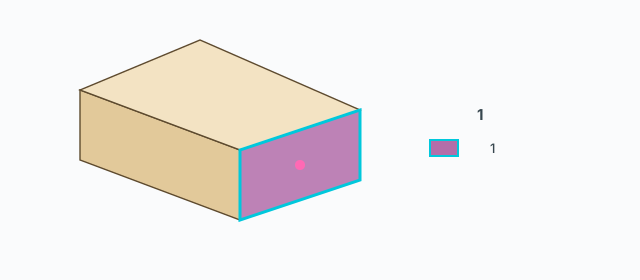
Each click is one Undo step (Edge band: mark or Edge band: unmark). If the board is a component with several copies, the tool makes the copy you are editing unique first, so the others do not change with it.
Clicking a face that already has a different band type applies the active type. It only clears when the click matches the type that is on.
Selecting several boards
The three buttons along the top act only on the current selection. The tool selects for you:
- Click a board (not on a side face) to select it. Click empty space to clear the selection.
- Hold Shift or Ctrl while you click to add, without dropping what was already selected.
- Drag a rectangle on screen to select the boards that rectangle covers. Hold Shift or Ctrl while dragging to add.
If nothing is selected, the three buttons do nothing.
The three top buttons
Hover a button for its hint. The button you are holding lights cyan:
- Open edges — mark every side face that is not touching and not inside another board, with the active type. An edge buried against the next board, or a tenon sitting in a mortise, is left alone.
- Clear — remove every edge-band mark on the selected boards.
- All edges — mark every side face of the selected boards, including edges that already meet another board.
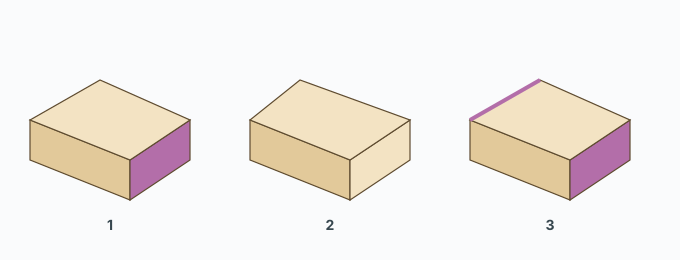
Each of the three is one Undo step, named Edge band: plus open edges, clear or all edges.
Presets
The gear at the top left opens Edge band presets. Each row has Name, Thickness (mm), Coefficient (the multiplier for metres in the edge-band statistics) and Color.
- + Add preset — add a type. An empty name becomes Band.
- Save — write the list. The swatches on the left update at once.
- Defaults — restore the factory list.
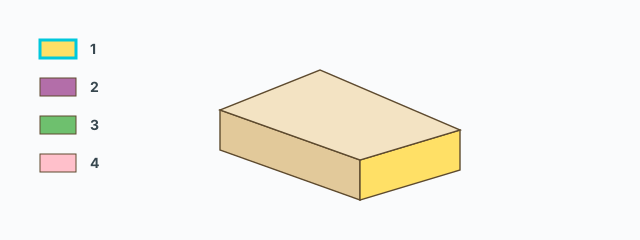
Until this computer has saved its own list, the factory set is four types, 1 mm thick except the last at 0 mm, coefficient 1:
- Vát — yellow.
- Chỉ — purple.
- 4F — green.
- Chỉ không trừ — pink, 0 mm thick (still a mark; the thickness used in the statistics is zero).
Good to know
- Only side faces take a mark. The large top and bottom do not.
- If the model has no boards, the left side reads No boards found in the model.
- Hiding, showing, retagging or deleting a board refreshes the colour overlay.
- The tool stays until you pick another one. The marks stay on the boards when you leave.
Common problems
- The click does not colour anything: you are on the large face, not a side. Move onto the edge of the board.
- The top buttons do nothing: no board is selected. Click a board or drag a box first.
- Open edges skipped a side: that side touches or sits inside another board. Use All edges if you still want it marked.
- Component copies changed too: that happens when you edit inside Edit Component yourself. This tool makes the clicked copy unique before it writes.