Tenon helper — tenons and mortises where boards touch
What does this tool do?
Tenon helper grows tenons on a board's edge and — when enabled — cuts the matching mortises in the mating board, exactly where the two boards really touch. The tool finds the mating boards itself, lays out slot positions along each contact region, and shows a 3D preview of the tenon before anything is created.
Use it when you need to:
- Join boards at right angles (side–bottom, divider–shelf) with CNC-ready tenon–and–mortise joints.
- Several tenons along one joint edge, with quick control of count, length, depth and edge offset.
- Special joint types: dogbone (cutter-radius relief), hook (slide-lock) and ngàm (tab-and-pocket).
Basic steps
- Select one or more boards first, or start the tool and double-click a board to pick it. The tool isolates the board with its mates and turns on X-ray and color-by-tag.
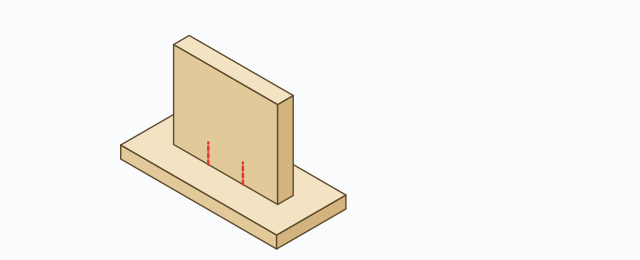
- On every front/back face that has a real mate, the tool draws red dashed anchor ticks at each slot position along the contact edge.
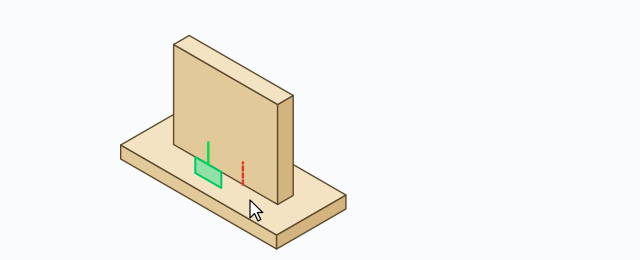
- Hover an anchor: it turns green and a translucent green 3D preview of the tenon appears at the exact spot.
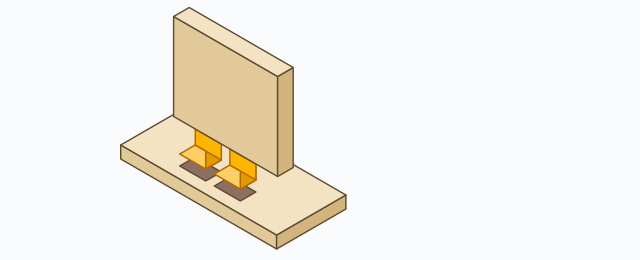
- Click to create the tenon at that slot (plus the mortise in the mate when Mortise is on).
Hold a key while clicking to do more:
- Shift + click — also create the mirrored slot on the opposite face of the same board.
- Ctrl + click — create every slot on that face at once.
The four joint types
The second pill row on the HUD picks the joint type — each type keeps its own parameter set:
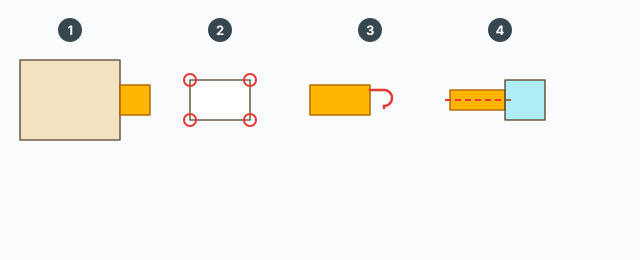
- Square — a plain rectangular tenon; the mortise is stretched to compensate for the cutter radius.
- Dogbone — the mortise corners are relieved by the cutter radius (the bit diameter chip, default ⌀6.5 mm) so a square tenon fits a round-milled mortise.
- Hook — also stamps a hook marker (
ABF_mocCau) pointing toward the cursor, and the mortise recedes by the hook length (default 7 mm) to make a slide lock. When marking several tenons at once, all hooks point the same way. - Ngàm — creates a square tongue, then stamps an
ABF_NGAMline on the tenon board and a pocket line (twice the tongue width) plus hook lines on the mate; no mortise is cut.
HUD parameters and quick input
The top chip row (click a chip to type a value):
- Tenon count(A) — number of slots along the contact edge.
- Tenon length(B) — mm (
50) or a percentage of the edge (50%);0= automatic; minimum 20 mm. - Tenon depth(C) — how deep the tenon pushes in, default 8 mm, minimum 1 mm.
- Offset(D) — shoulder left at both ends of the tenon (mm).
- Extend both ends(E) — extra mortise length beyond the tenon (mm).
- Width +(F) — extra mortise width (mm) for an easier fit.
- Mortise — toggles automatic mortise cutting on the mate.
Quick input without clicking a chip: type /3 to set the slot count to 3; type a plain number (e.g. 12) to set the edge offset. Depth is only changed via the Tenon depth(C) chip.
The tool sizes tenons by contact length
- Contact shorter than 30 mm — no tenon (too short to joint).
- 30–50 mm — one 20 mm tenon centred on the contact.
- Longer — one 30 mm tenon, and once the contact is long enough for a long tenon plus 15 mm shoulders at both ends, the edge is divided into multiple slots per Tenon count.
- If the edge is too short for the requested slots, the status bar says how many tenons actually fit and the minimum size needed.
Finishing and Undo
Press Esc or switch tools to finish: the tool merges the tenons into the boards, fixes reversed faces, and wraps the whole batch into one Undo step. If some tenons could not be created or merged, a dialog lists the board names so you can check them. Pressing Ctrl+Z while the tool is still open only undoes the last creation; your HUD settings are kept.
The gear button opens Tenon settings: one parameter tab per joint type plus an Illustration tab that draws the joint with the current values. Save to apply, Reset for defaults.
Keyboard
- Click – create the tenon at the hovered slot.
- Shift / Ctrl + click – add the opposite slot / all slots on the face.
- Type
/N– slot count; type a number – edge offset (mm). - Double-click a board – pick it while the tool is waiting.
- Esc – finish and merge the tenons.
Common problems
- No anchor ticks: that face has no real mating board, or the contact is shorter than 30 mm. Check that the two boards actually touch.
- "Only x/y tenons fit" notice: the contact edge is too short for the chosen count and length — lower the count, length or offset.
- No mortise was cut: Mortise is off, or the Ngàm type is selected (it never cuts a mortise).
- "Tenon incomplete" dialog: some tenons could not merge into a board (bad geometry) — check the listed boards, fix the solids and create again.
- Hook points the wrong way: the hook direction follows the cursor side at the click — undo and click again with the cursor on the correct side.